

Viewing Analytics
The Analytics page gives organization owners a high-level view of how their studio is performing. Track total projects and assets, monitor upload trends, and see how talent are responding to approvals.
What You'll Learn
- How to read the overview stat cards for projects, assets, approvals, and storage
- How to review per-project activity breakdowns
- How to interpret the 30-day upload trend chart
- How to check approval status and talent engagement metrics
Step 1: Open the Analytics Page
Click Analytics in the left sidebar. The page loads four stat cards at the top showing your organization's key numbers at a glance.
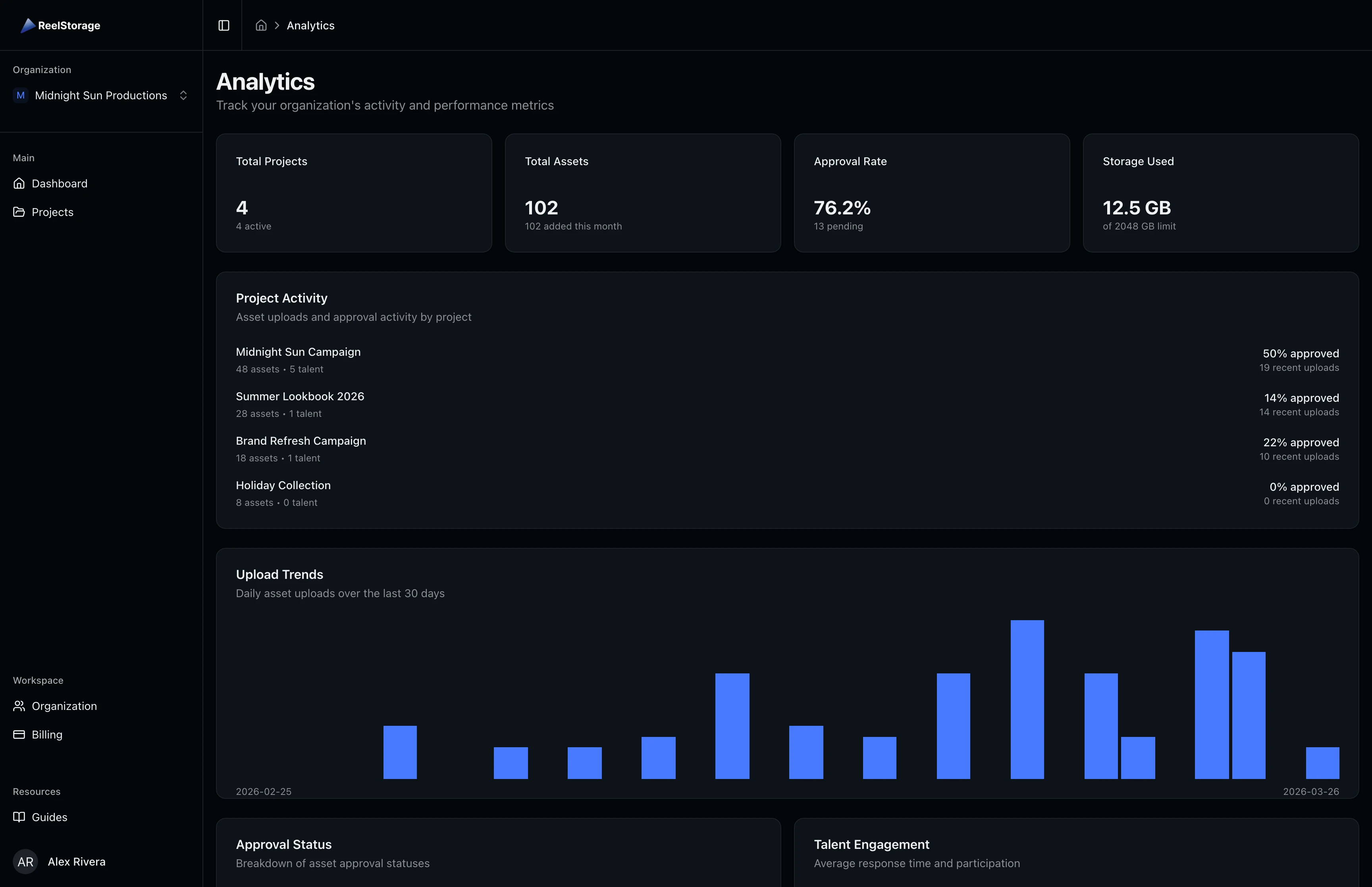
Each card includes a secondary detail:
- Total Projects shows how many are currently active out of the total count.
- Total Assets shows how many were added this month.
- Approval Rate is calculated from approved vs. total responded (approved + killed). Pending approvals are shown separately.
- Storage Used shows current usage against your plan limit.
Step 2: Review Project Activity
Scroll down to the Project Activity card to see your projects ranked by asset count. Each row shows the project name, number of assets, talent count, approval percentage, and recent upload count from the last seven days.
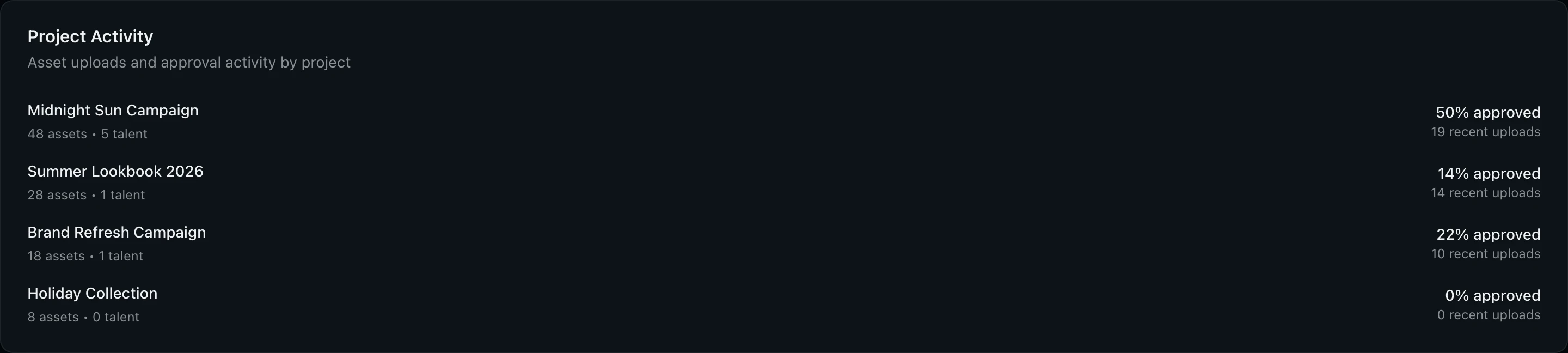
Use this section to identify which projects are most active and which ones may need follow-up. A project with a high asset count but a low approval rate may need a reminder sent to talent. Projects with zero recent uploads may be between shoot phases or completed.
Step 3: Check Upload Trends
Look at the Upload Trends card to see a bar chart of daily asset uploads over the last 30 days. Hover over any bar to see the exact date and upload count for that day.
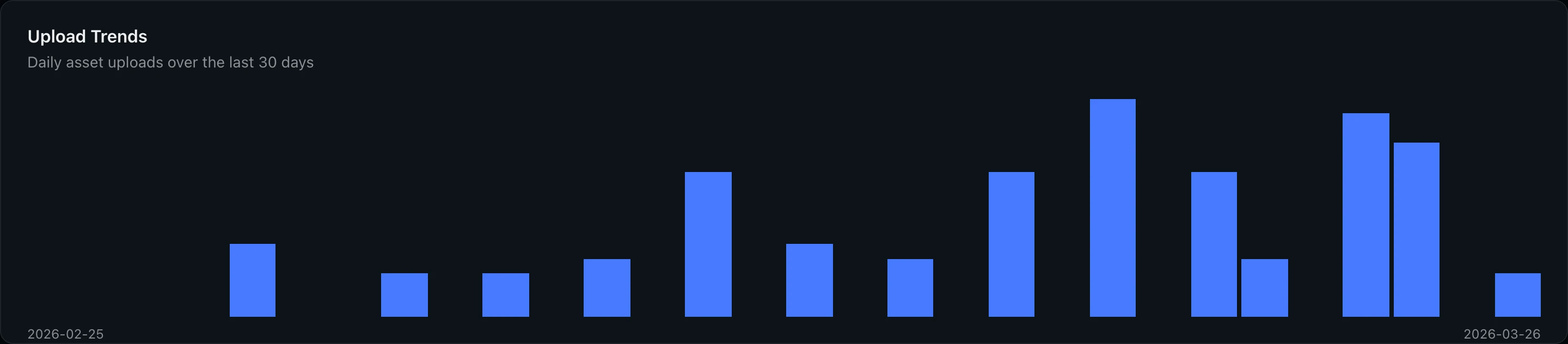
Spikes in the chart often correspond to shoot days or batch imports. Flat periods may indicate a gap between projects or a pause in production.
Step 4: View Approval Status and Talent Engagement
Scroll to the bottom of the page to find two side-by-side cards covering approval and talent metrics.

The Approval Status card breaks down your assets into three categories:
- Approved counts assets that talent have accepted.
- Killed counts assets that talent have rejected.
- Pending counts assets still awaiting a response.
The Talent Engagement card shows three metrics:
- Avg. Response Time is the average number of hours between sending an approval and receiving a response. Lower is better.
- Participation Rate shows what percentage of talent with access codes have responded to at least one approval.
- Active Talent is the total number of talent who have interacted with your approvals.
A low participation rate may mean some talent have not opened their approval links yet. Check the Approvals section for the specific project to send a follow-up.
Tips and Best Practices
- Check analytics weekly. A regular review helps you catch slowdowns in approval responses or unexpected storage growth before they become problems.
- Use project activity to prioritize. Projects with high asset counts but low approval rates need attention first.
- Watch your storage limit. If you are approaching your plan cap, consider archiving completed projects or upgrading your plan in the Billing section.
Troubleshooting
I don't see the Analytics page in the sidebar
Only organization owners can access analytics. If you have a member or admin role, ask your organization owner to share the metrics with you.
The page says "No analytics data available"
Your organization does not have any projects with assets yet. Create a project and upload some assets first, then return to see your metrics populate.
What's Next
- Managing Projects: Learn how to create and organize the projects that feed into your analytics
- Sending Approvals to Talent: Set up approval workflows to improve your approval rate metrics
Related Guides
Using the Dashboard
Get an overview of your studio with the dashboard, including project stats, recent activity, approvals, collections insights, and quick actions.
Sending Approvals to Talent
Create talent approvals, assign images for review, and track approval progress with detailed statistics and settings.
Managing Projects
Learn how to create, organize, and manage photo projects in ReelStorage, including settings, team members, and archiving.