

Managing Your Subscription
Prerequisites
View and manage your organization's subscription, track storage usage, update payment methods, and access past invoices from the Billing page.
What You'll Learn
- How to check your current storage usage and plan limits
- How to browse available plans and choose one for your organization
- How to view your active subscription details
- How to manage your payment method through the Stripe portal
- How to view and download past invoices
Step 1: Open the Billing Page
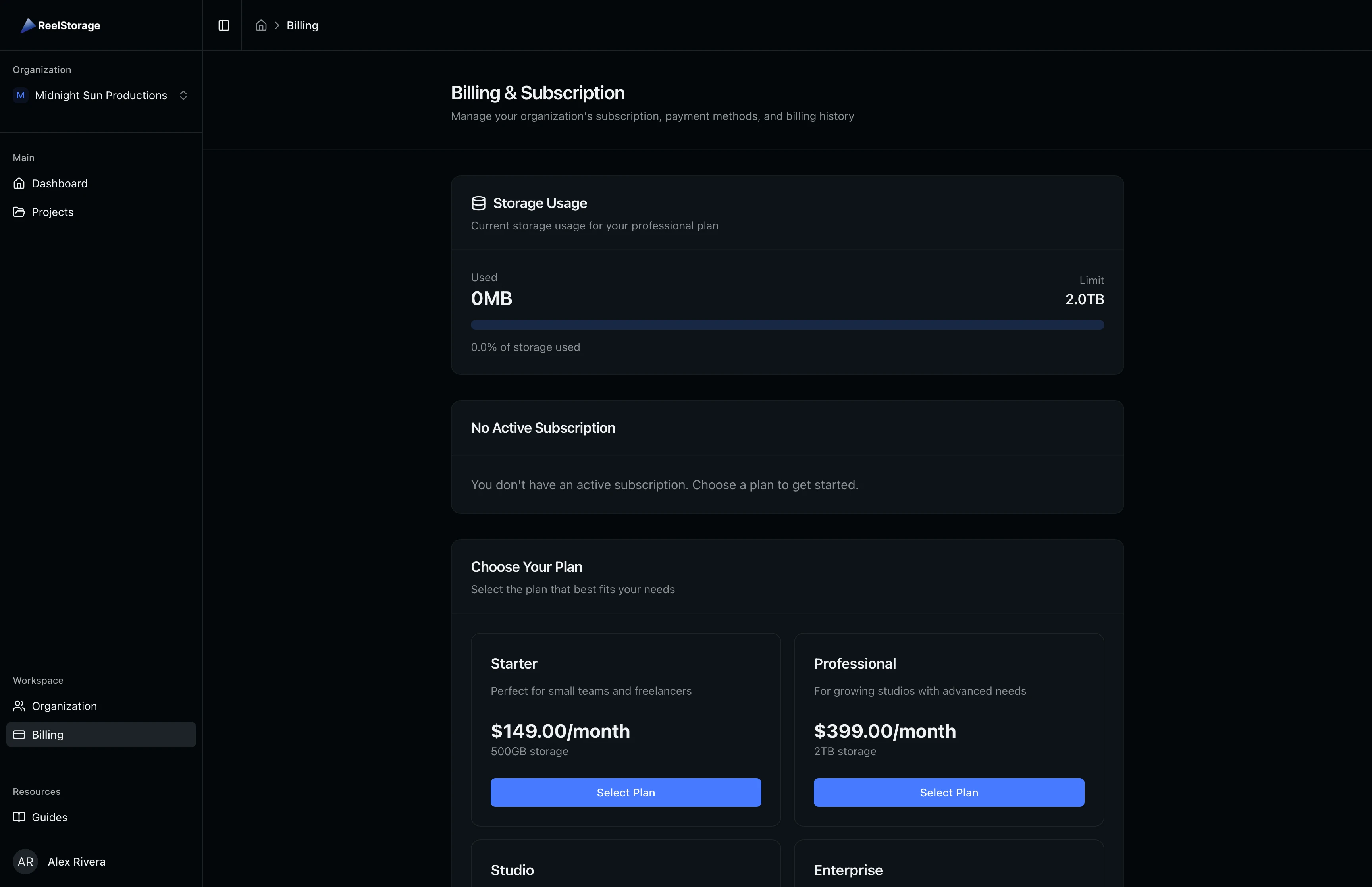
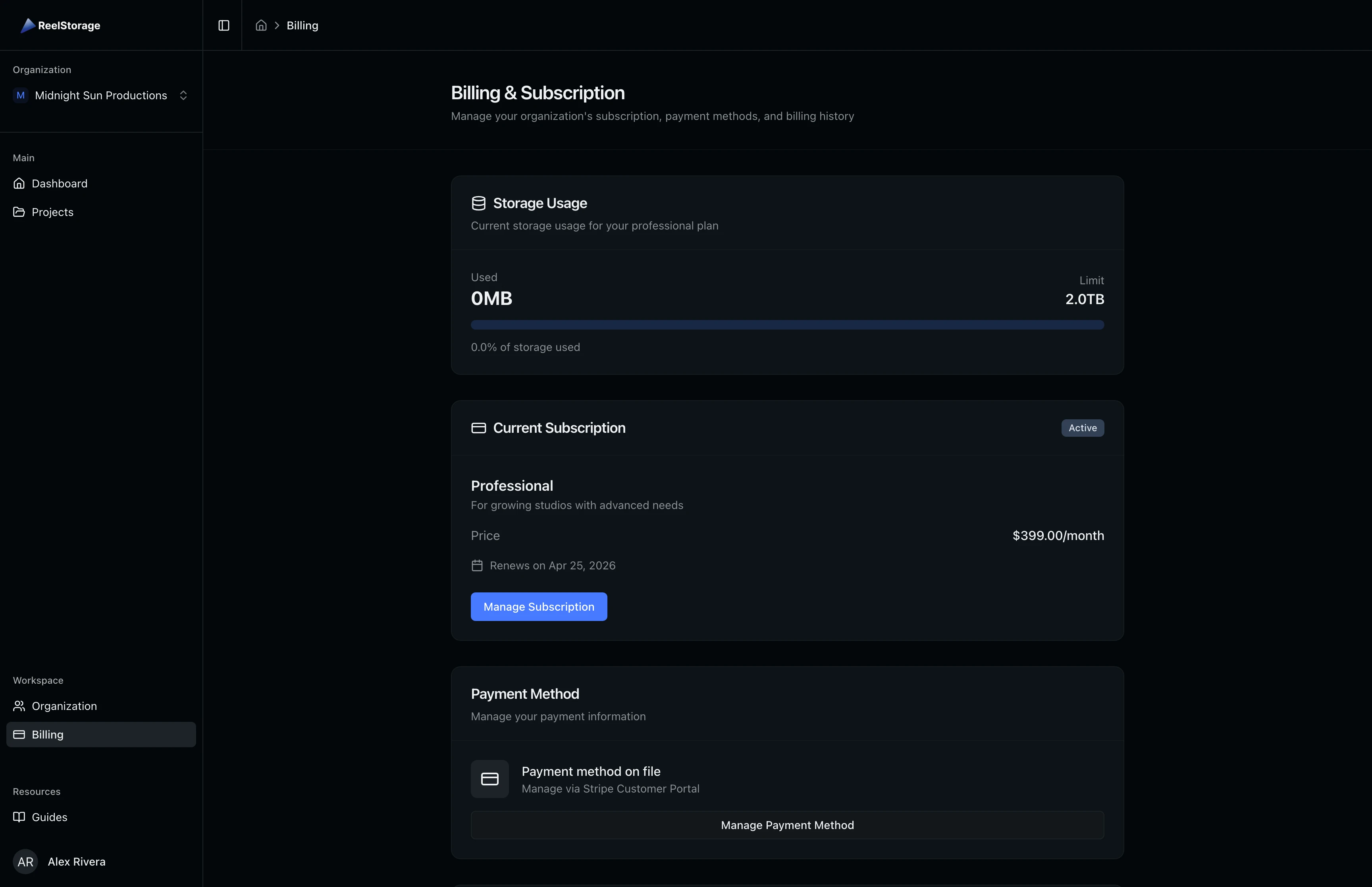
Click Billing in the sidebar navigation. The Billing page displays your organization's storage consumption, subscription status, and payment information in a single scrollable view. Only organization members with the viewBilling permission can access this page.
Step 2: Check Your Storage Usage
The Storage Usage card at the top of the page shows a progress bar comparing your consumed storage against your plan limit. The left side displays the total amount used (for example, "250.5 GB"), while the right side shows your plan ceiling. When usage crosses 80%, a yellow warning banner appears with an Upgrade Plan button so you can add capacity before uploads are blocked.
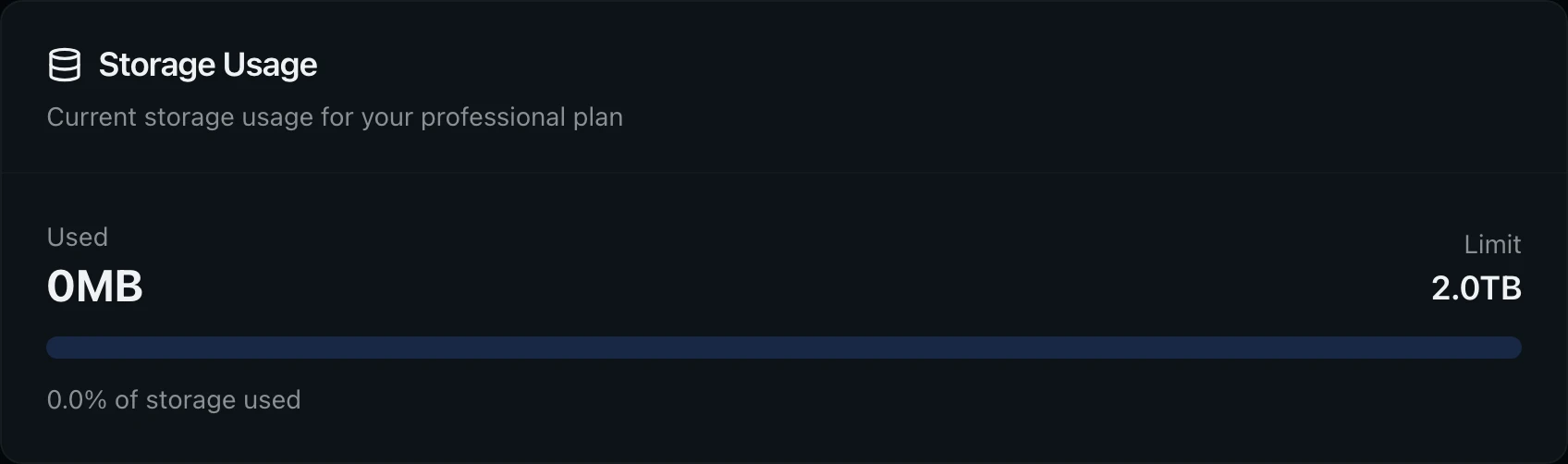
Once you exceed 100% of your storage limit, all new uploads are blocked across every project in the organization until you upgrade or free up space.
Step 3: Choose a Plan (New Organizations)
If your organization does not have an active subscription, the page shows a No Active Subscription notice with a prompt to get started. Below the notice you will find the full plan catalog.

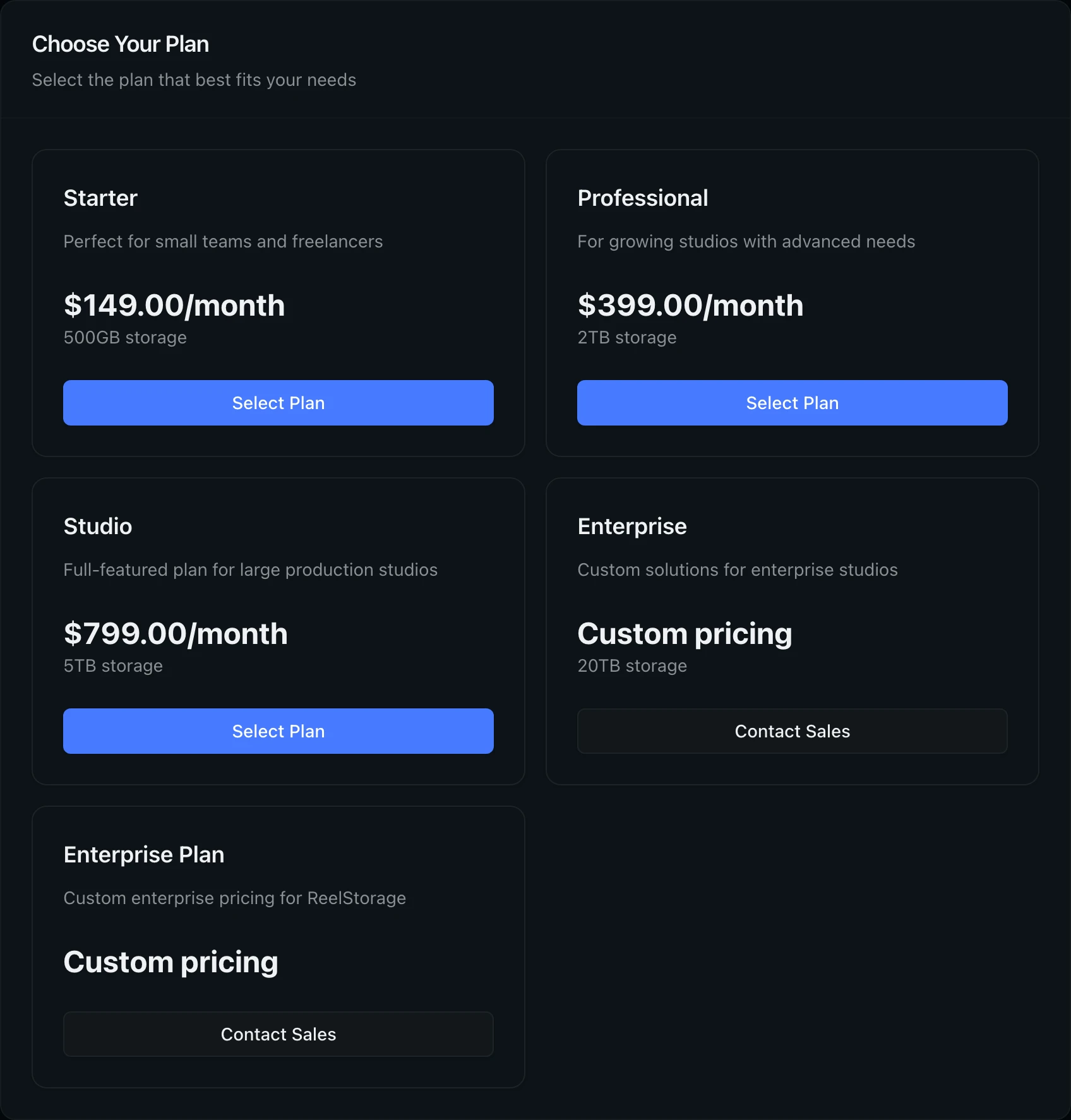
Scroll down to the Choose Your Plan section to compare all available tiers. Each plan card lists the monthly price, included storage, and key features. Plans range from Starter (ideal for small teams at $29/month with 500 GB) through Professional and Studio, up to Enterprise with custom pricing. Click Select Plan on the tier that fits your needs, then complete payment through Stripe's secure checkout.
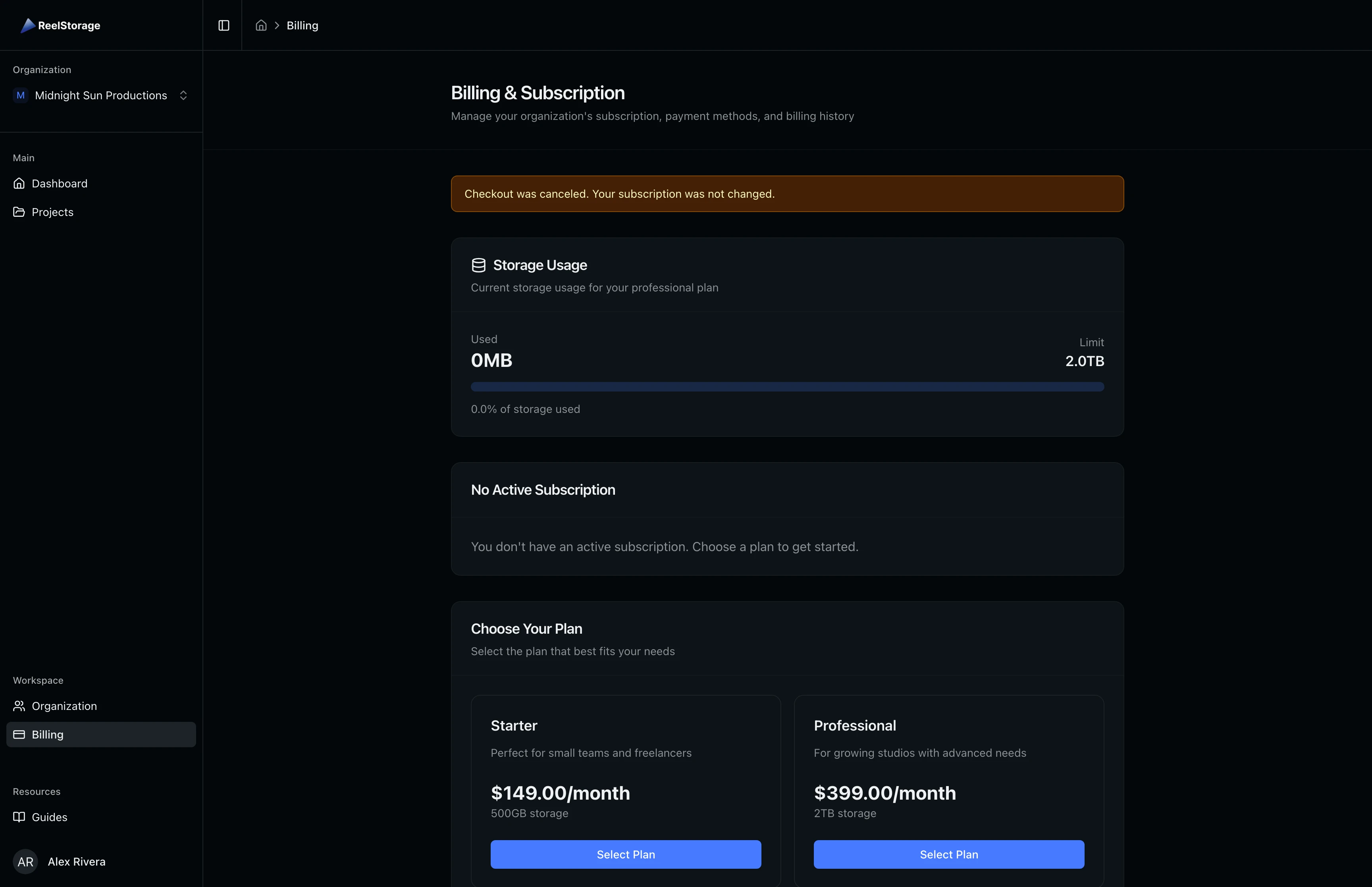
If you leave the Stripe checkout page before completing payment, a yellow banner confirms that your subscription was not changed. You can return to the Billing page and try again at any time.
Step 4: Review Your Active Subscription
After subscribing, the Current Subscription card replaces the plan grid. It displays your plan name, monthly price, billing interval, renewal date, and a status badge. The badge shows Active for a healthy subscription, Trial during a free trial period, or Past Due if a recent payment attempt failed.
Click Manage Subscription to open the Stripe Customer Portal where you can upgrade, downgrade, or cancel your plan.
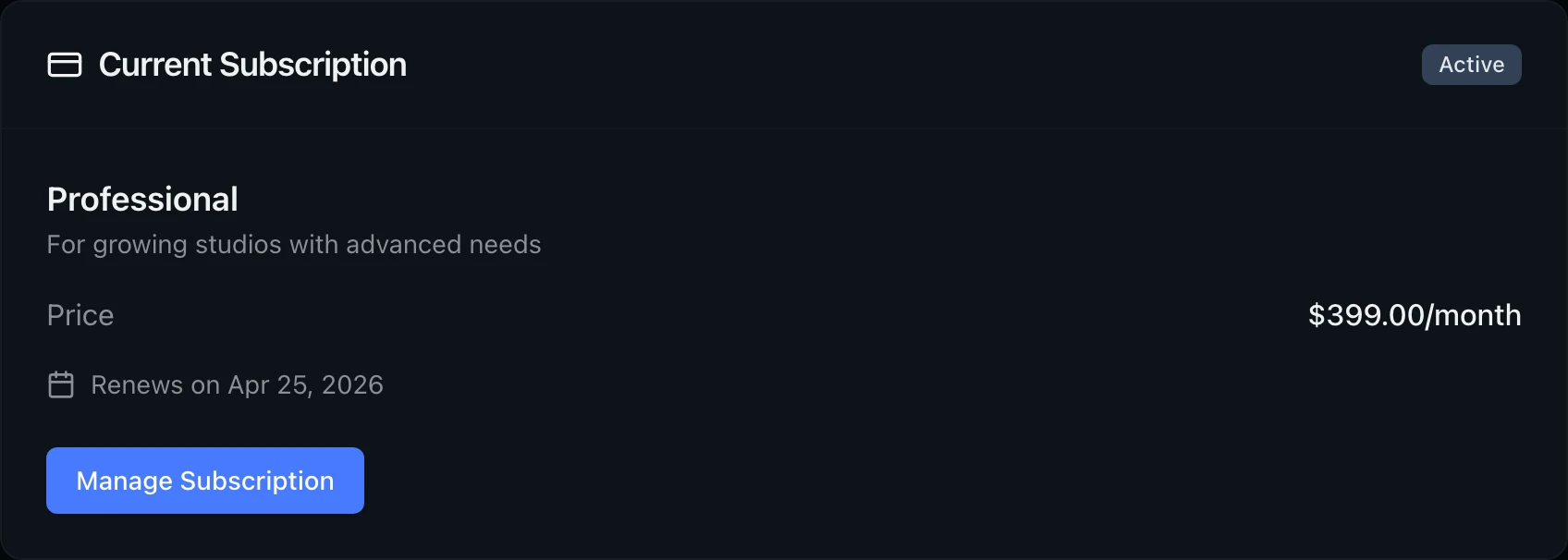
The renewal date shown on the subscription card is the next date Stripe will charge your payment method. You will not be charged again until then, even if you cancel before that date.
Step 5: Manage Your Payment Method
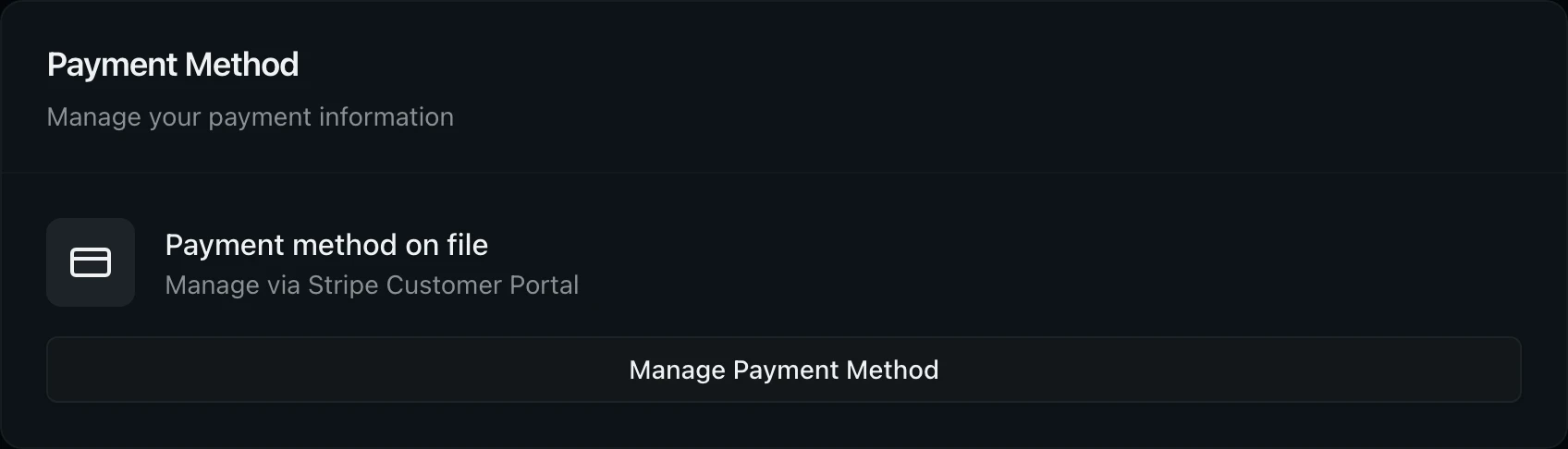
Below the subscription card, the Payment Method section shows that your card is managed through Stripe's Customer Portal. Click Manage Payment Method to open the portal in a new tab. From there you can update your card number, switch to a different payment method, or add a backup card.
Step 6: View Invoice History
At the bottom of the page, the Invoice History section lists all past invoices. Each row shows the invoice number, date, amount, and payment status (Paid, Open, Draft, or Void). Click View to open the full invoice in Stripe, or click PDF to download a copy for your records.

Download PDF invoices if you need them for expense reports or tax records. Stripe retains invoices indefinitely, but a local copy ensures you always have access regardless of account changes.
Tips
- Check the storage bar before large uploads. If your team is about to upload a batch of high-resolution photos, verify remaining capacity first so you can upgrade beforehand if needed.
- Keep your payment method current. An expired card causes payment failures that put your subscription into a Past Due state. Update your card as soon as you receive a replacement.
- Use the Stripe portal for all payment changes. Card updates, plan switches, and cancellations all happen through Stripe's secure portal, not directly in ReelStorage.
Troubleshooting
I do not see the Billing page in the sidebar
The Billing page requires the viewBilling permission. Ask your organization owner or admin to grant you this permission in Organization Settings.
My subscription shows "Past Due"
A Past Due status means a recent payment attempt failed. Click Manage Payment Method to update your card details in the Stripe portal. Stripe retries failed payments automatically once you provide a valid card.
I canceled but still have access
Canceled subscriptions remain active until the end of the current billing period. The subscription card shows the exact date your access expires next to the calendar icon.
What's Next
- Organization Settings: Manage team members, branding, and security settings
- Account Settings: Update your personal profile, password, and notification preferences
Related Guides
Managing Your Organization
Update your organization details, invite team members, customize branding, and configure security settings from the Organization page.
Managing Your Account Settings
Update your profile, change your email or password, enable two-factor authentication, set up passkeys, review active sessions, and manage your personal data from the Settings page.