

Using the Dashboard
Prerequisites
The dashboard is your home base after signing in. It gives you a snapshot of active projects, recent uploads across your team, pending talent approvals, collection activity, and storage usage in one place.
What You'll Learn
- How to read the stat cards at the top of the dashboard
- How to check recent activity and urgent approvals
- How to review your active project cards
- How to track collection activity and alerts
- How to use quick actions to jump to common tasks
Step 1: View the Dashboard Overview
After signing in, you land on the dashboard. Four stat cards span the top of the page: Active Projects, Total Assets, Pending Approvals, and Storage Used. Each card summarizes a key metric for your organization. Below the stats, the left column shows your team's recent activity and the right column highlights any urgent approvals that need attention.
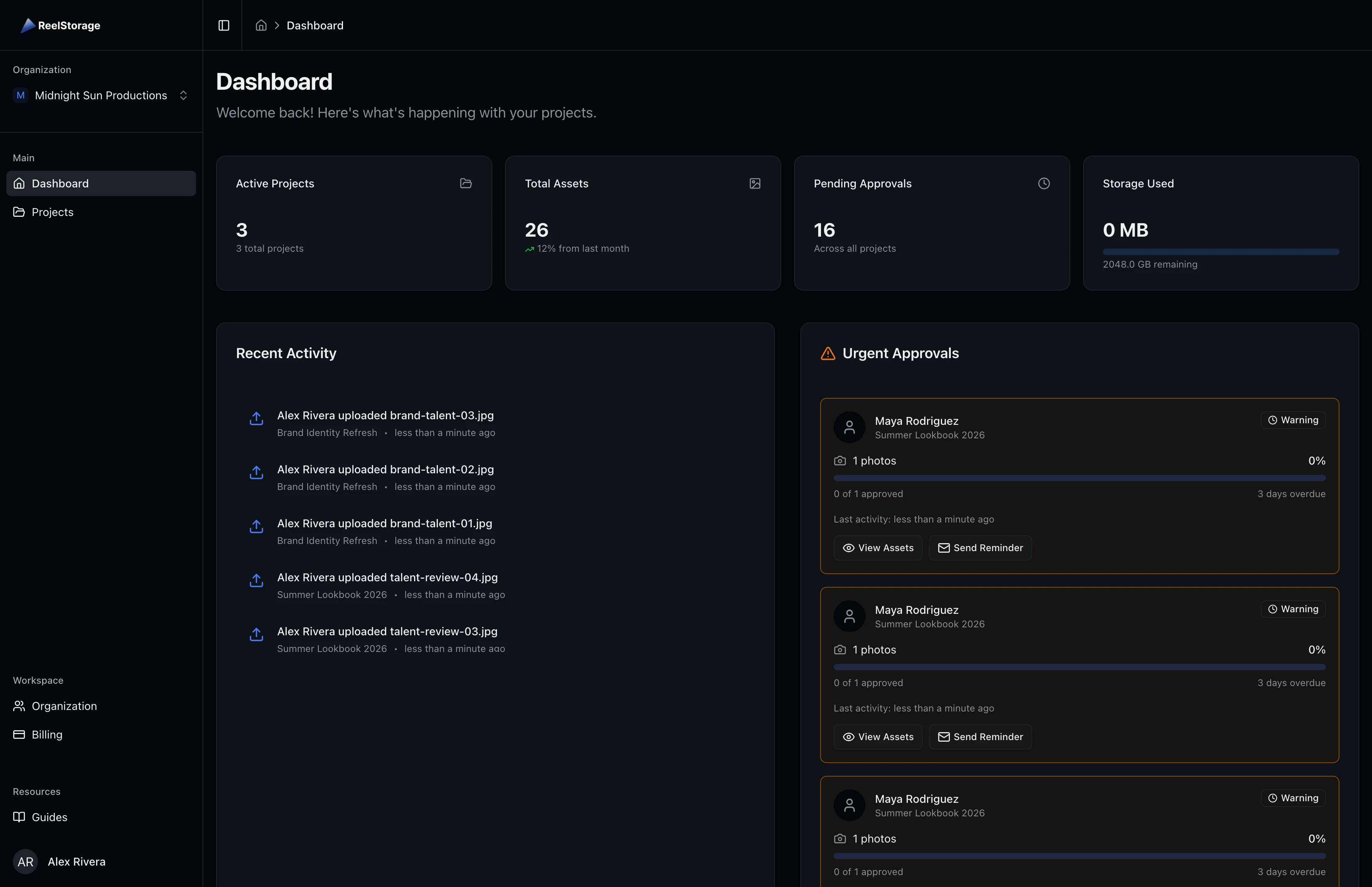
The Active Projects card is clickable and takes you directly to the projects list. The Storage Used card shows a progress bar of your plan's storage limit with a link to your billing page.
Bookmark the dashboard URL so you can jump straight to your studio overview each morning.
Step 2: Check Recent Activity
The Recent Activity feed shows what your team has been doing. Each entry includes the action type, the team member who performed it, the project name, and a relative timestamp. Upload events appear with the original filename so you can track specific deliverables.
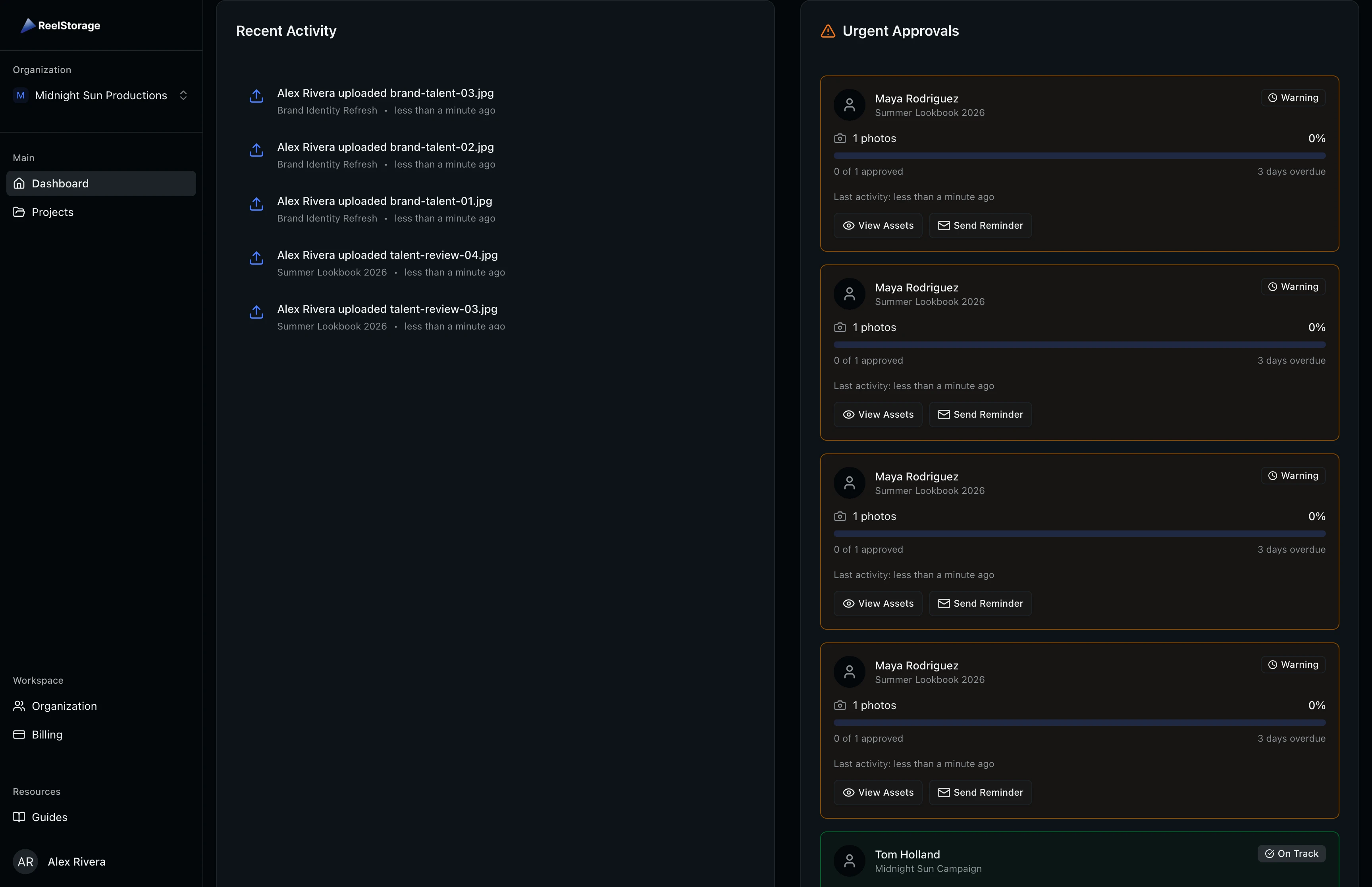
The feed shows the 10 most recent events across all projects you have access to. Studio managers and organization owners see activity from every project. Members see activity only from their assigned projects.
Step 3: Review Urgent Approvals
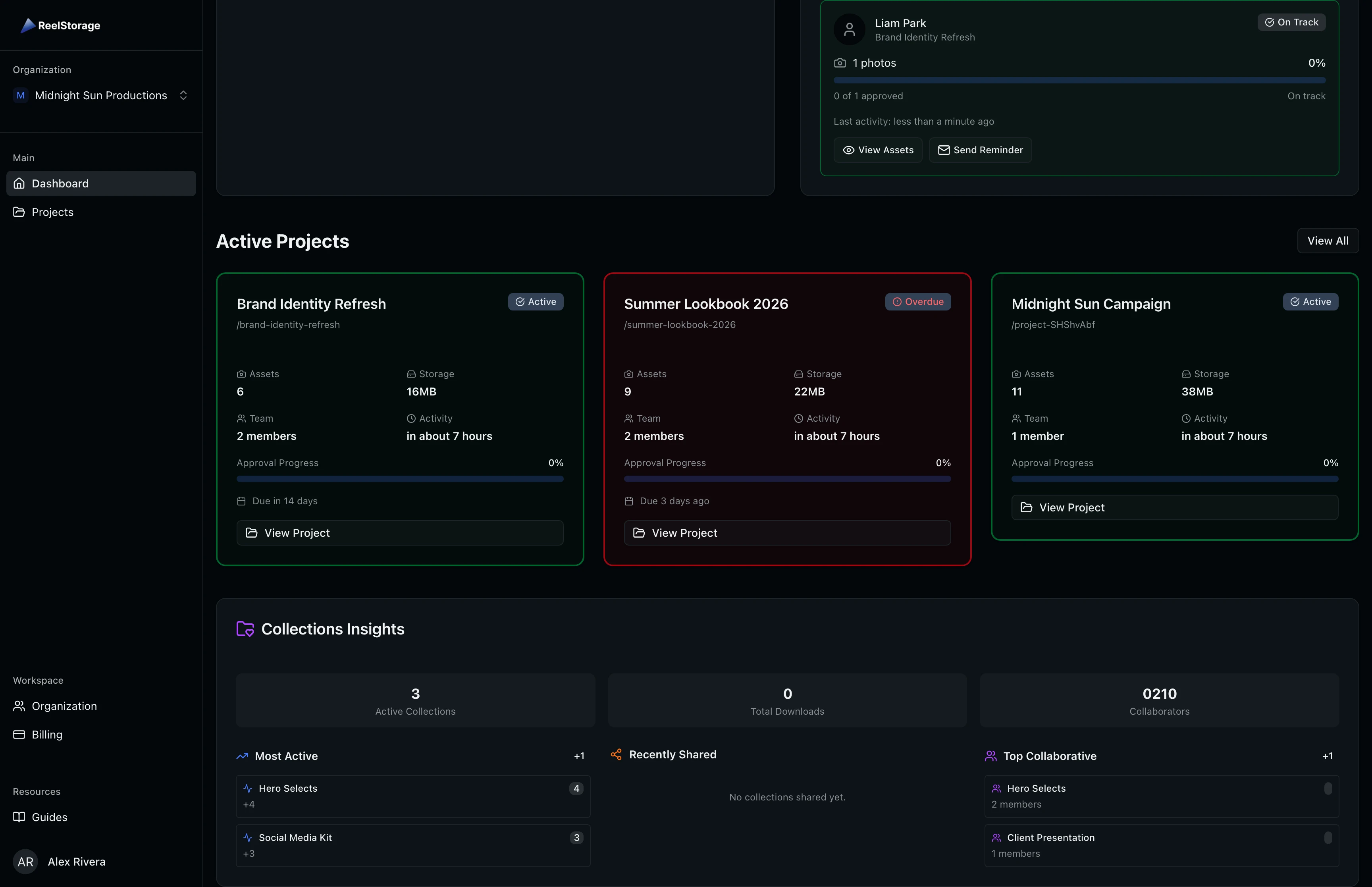
The Urgent Approvals section lists talent approvals that need attention. Each approval shows the talent name, project, asset count, and an urgency badge. Urgency levels are calculated from the project's approval deadline:
- Critical (red): More than 7 days past deadline
- Warning (yellow): Past deadline or due within 2 days
- On Track (green): Due in more than 2 days
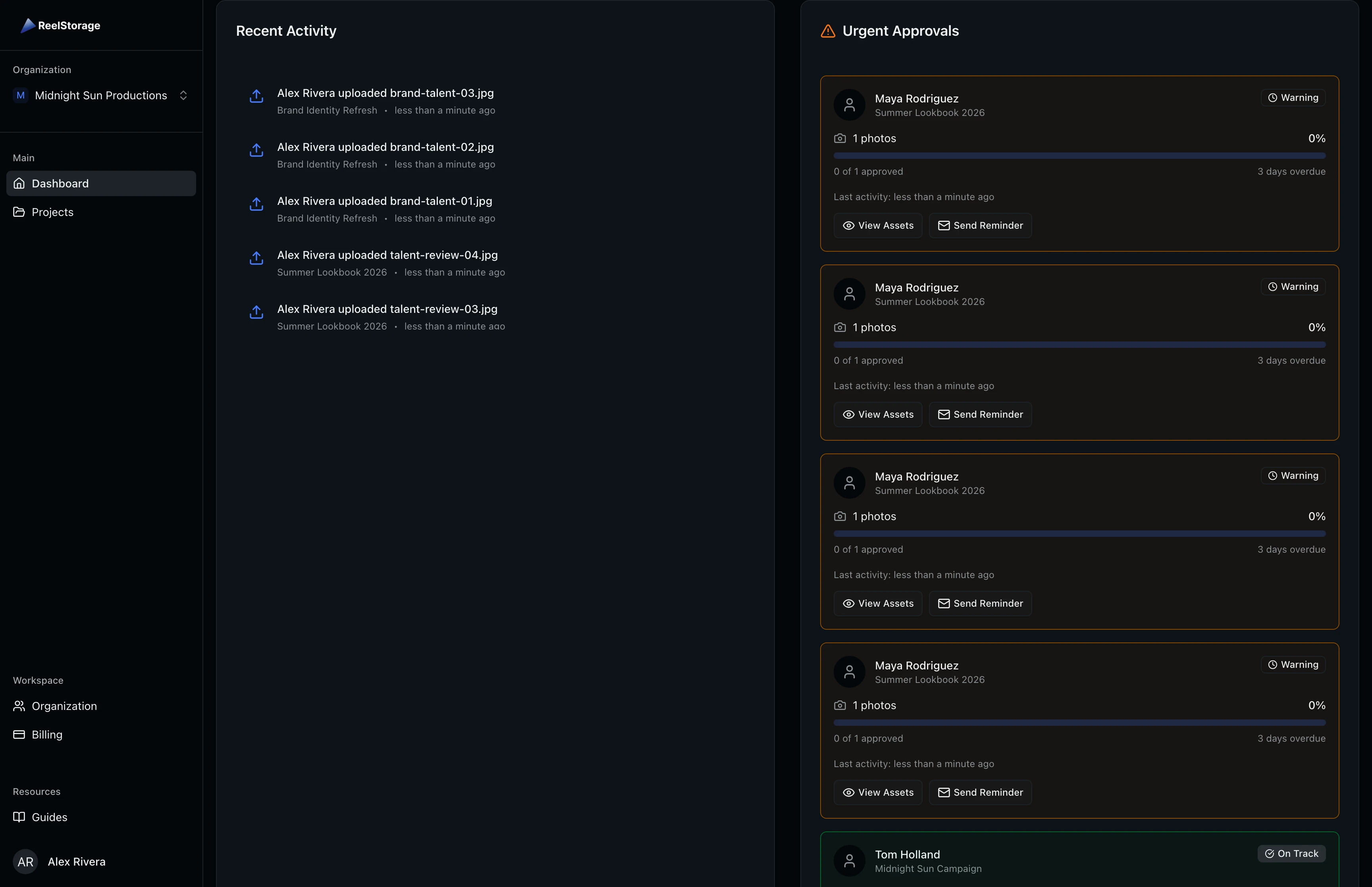
Use the View Assets button to jump to the approval detail page. The Send Reminder button sends a follow-up notification to the talent.
Approvals marked Critical are overdue. Prioritize these to keep talent relationships strong and projects on schedule.
Step 4: Browse Active Project Cards
Scroll down to see your Active Projects displayed as cards. Each card shows the project name, status badge, asset count, storage usage, team size, and last activity date. A progress bar tracks approval completion for each project.
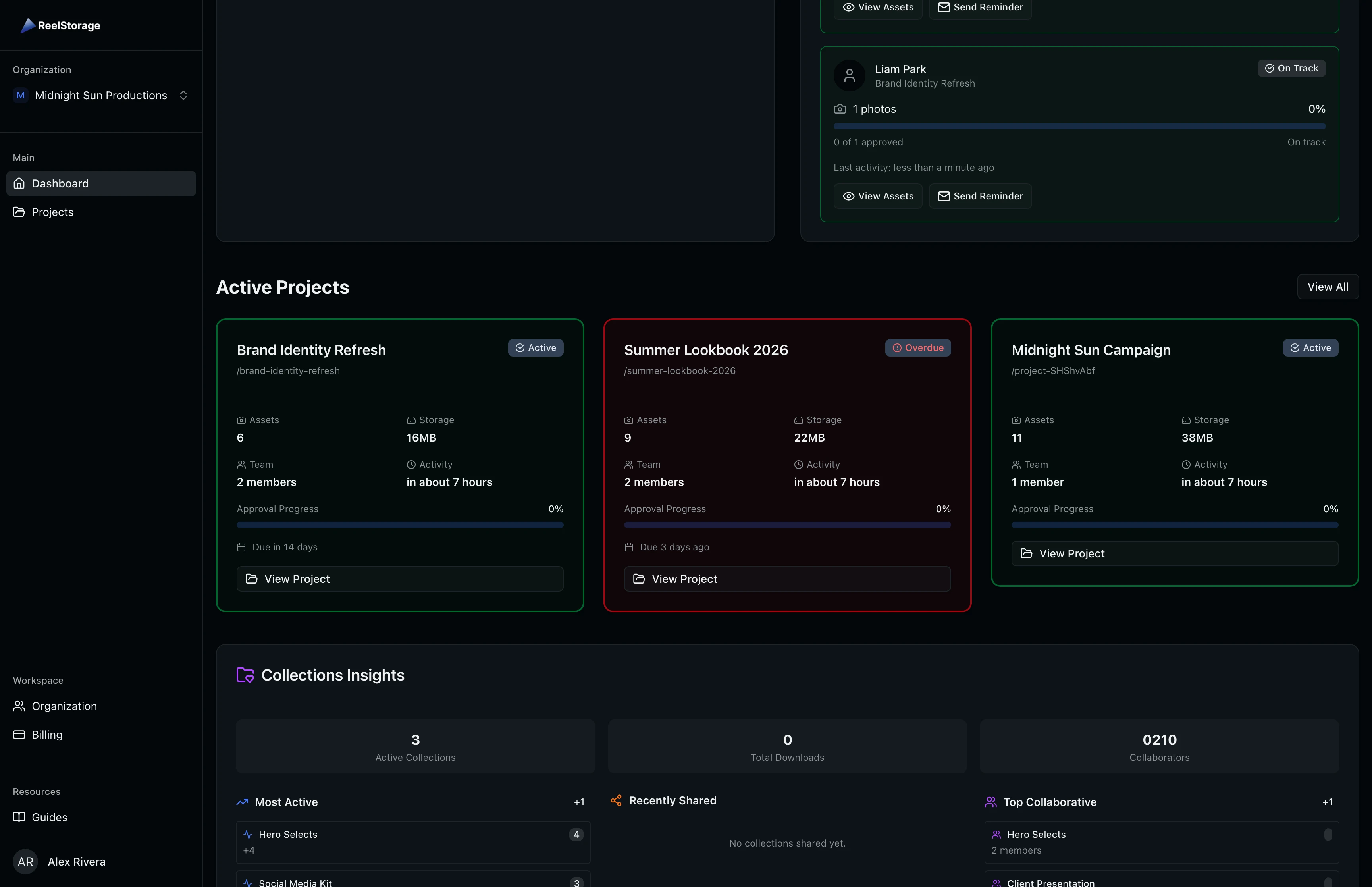
Click any card to open that project's detail page. If you have more than three active projects, a View All button appears with a count badge showing how many additional projects exist.
Step 5: Review Collections Insights
The Collections Insights section shows activity across your asset collections in three categories:
- Most Active: Collections with the most recent asset additions
- Recently Shared: Collections with active download links
- Top Collaborative: Collections with the most team members
Each collection entry shows its name, parent project, asset count, and the relevant metric (recent additions, downloads, or collaborator count). Use this section to spot which collections your team is actively working in.
Step 6: Monitor Alerts
The Quick Wins & Alerts section surfaces issues that need your attention, grouped by severity. Critical alerts (red) appear first, followed by warnings (yellow), then opportunities (blue).
Common alerts include overdue approvals, high storage usage, and expired access codes. Each alert includes an action button that takes you directly to the relevant page.
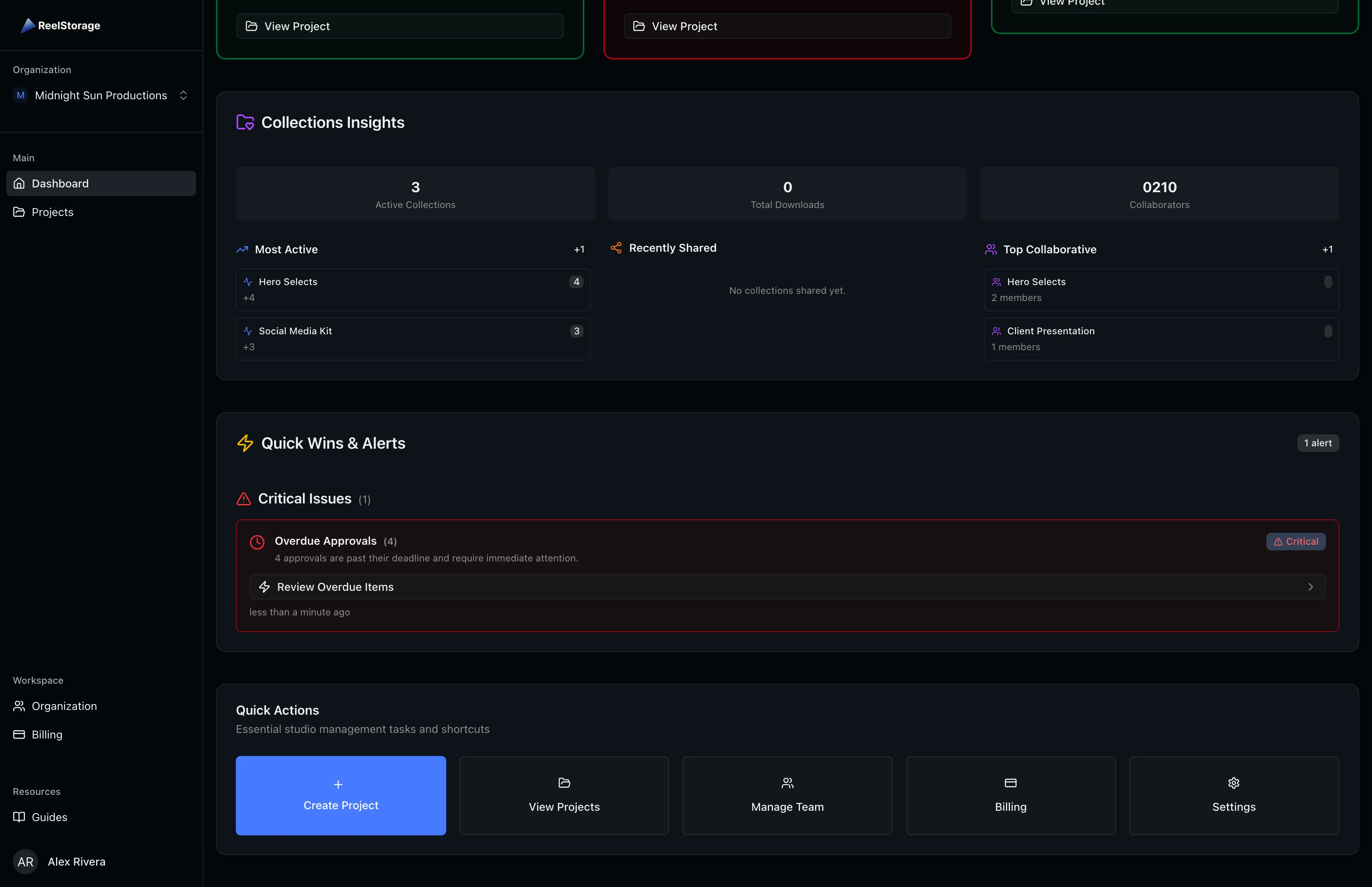
Dismissible alerts have an X button on hover. Dismiss resolved items to keep the alerts section clean.
Step 7: Use Quick Actions
At the bottom of the dashboard, the Quick Actions card provides shortcuts to common tasks. Available actions include creating a new project, viewing all projects, managing your team, checking billing, and opening settings.
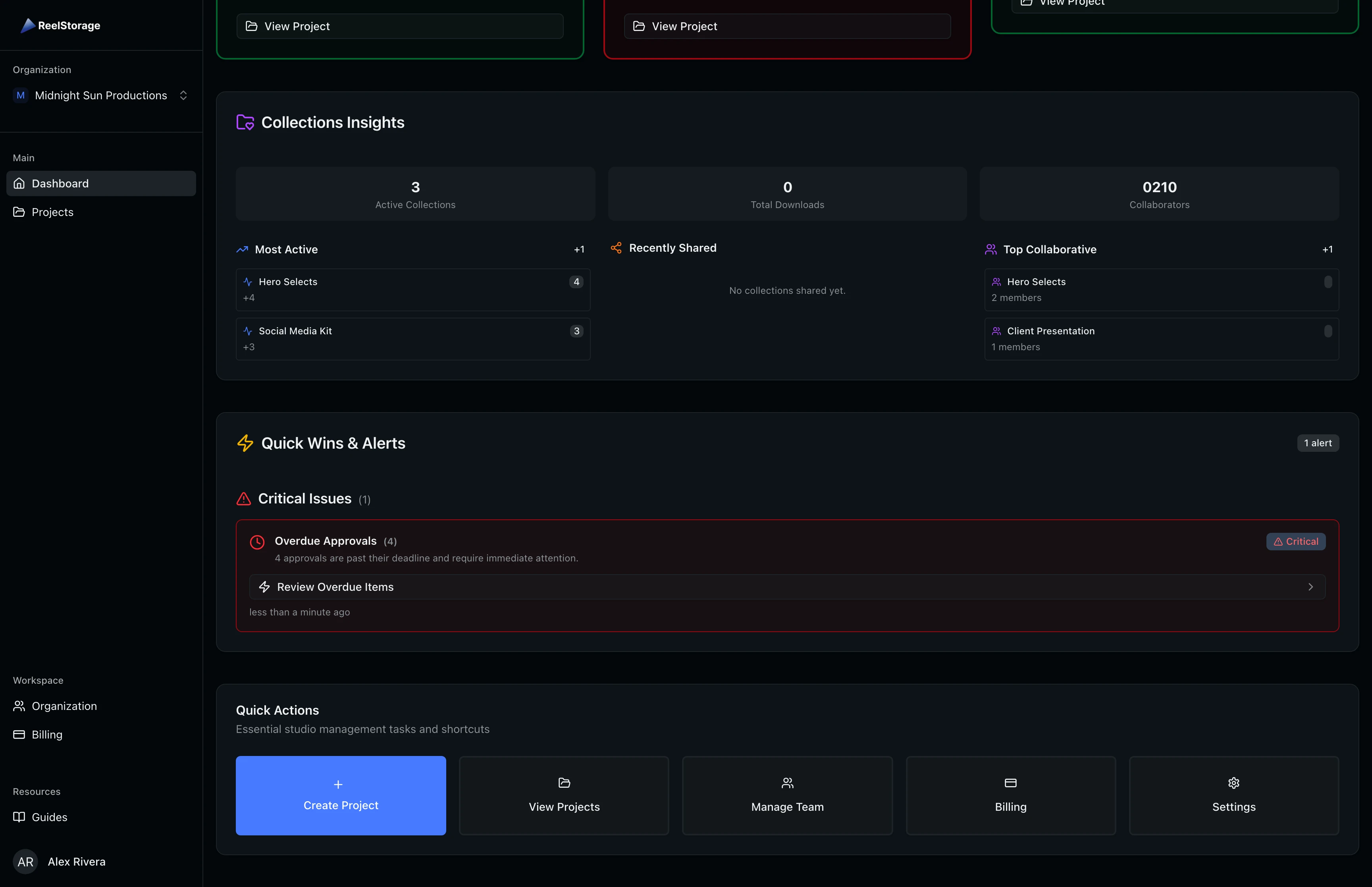
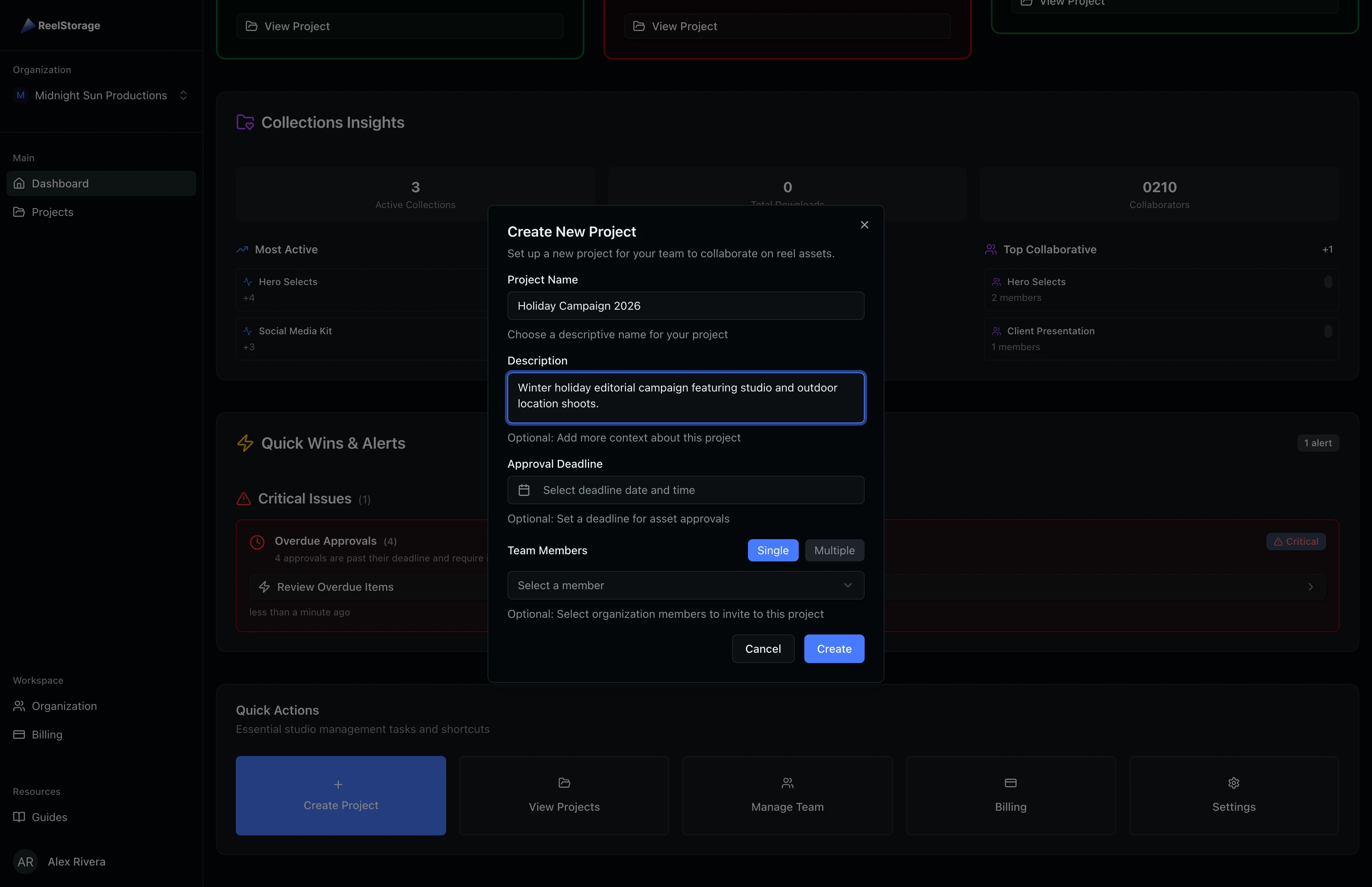
The Create Project button opens a dialog where you can name the project, add a description, set an approval deadline, and invite team members. You do not need to leave the dashboard to start a new project.
The Manage Team and Billing shortcuts are only visible to organization owners and admins.
Tips and Best Practices
- Check the dashboard daily. A quick scan of the stats, activity feed, and approvals keeps you informed about your team's progress across all projects.
- Act on critical approvals first. Overdue approvals block talent workflows and can delay project timelines.
- Use stat cards as navigation shortcuts. The Active Projects card links to your projects list, and the Storage Used card links to billing.
- Watch the Collections Insights section. It helps you identify which collections are getting the most activity from your team.
Troubleshooting
Why do I see zeros for all stats?
You have not created any projects yet. Head to the Quick Actions section and click Create Project to get started.
Why is my storage card showing 0 MB?
Storage usage updates after assets finish processing. If you uploaded assets recently, wait a few minutes and refresh the page.
Why don't I see the Manage Team or Billing buttons?
These actions require organization owner or admin permissions. If you need access, ask your organization owner to update your role.
What's Next
- Managing Projects: Create and organize your first project.
- Setting Up Your Organization: Invite team members and finish your organization setup.
Related Guides
Setting Up Your Organization
Complete the onboarding wizard to create your studio, choose a plan, and invite team members to start collaborating.
Managing Projects
Learn how to create, organize, and manage photo projects in ReelStorage, including settings, team members, and archiving.