

Creating Your Account
Create your ReelStorage account in under two minutes. You will set up your name, email, and a secure password, then verify your email address before moving on to organization setup.
What You Will Learn
- How to open the sign-up page and fill in your details
- What the password requirements are and how to create a strong password
- How to verify your email address after registration
Step 1: Go to the Sign-Up Page
Open your browser and navigate to the ReelStorage sign-up page. You will see a split-screen layout with a background image on the left and the registration form on the right. The form defaults to the Sign Up tab with fields for Name, Email, and Password.

Step 2: Enter Your Name and Email
Type your full name in the Name field and your email address in the Email field. Use the email address you want associated with your ReelStorage account. This is where verification emails, notifications, and team invitations will be sent.
If you are joining an existing team, use the same email address your team lead plans to send your invitation to. This prevents duplicate accounts and lets you accept the invitation immediately after verifying.

Step 3: Review the Password Requirements
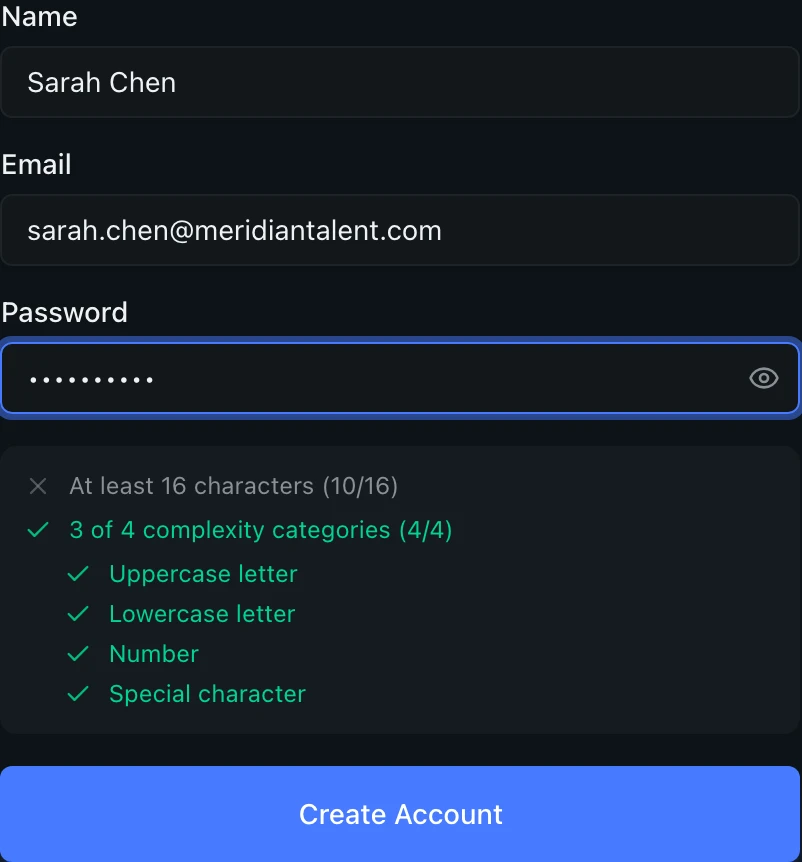
Start typing a password in the Password field. A requirements checklist appears below the field as you type. Your password needs:
- At least 16 characters
- 3 of 4 complexity categories (uppercase, lowercase, number, special character)
The checklist updates in real time. Requirements that are met show a green checkmark, while unmet requirements display a gray or red indicator. In the screenshot below, the password is too short and the length requirement has not been met yet, while the complexity categories are satisfied.

Here is a closer look at the form showing the password requirements checklist:
Step 4: Complete the Form and Submit
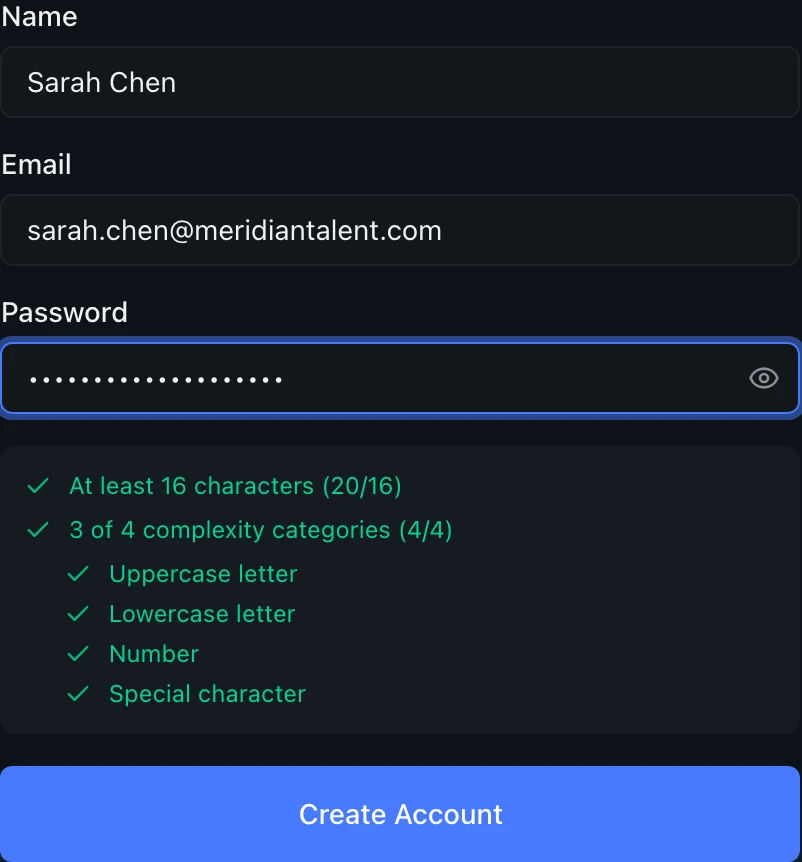
Update your password until all requirements show green checkmarks. Once every requirement is satisfied, the Create Account button becomes active. Review your name and email one more time, then click Create Account to submit your registration.

The detail view below shows all password requirements marked as satisfied:
Step 5: Verify Your Email
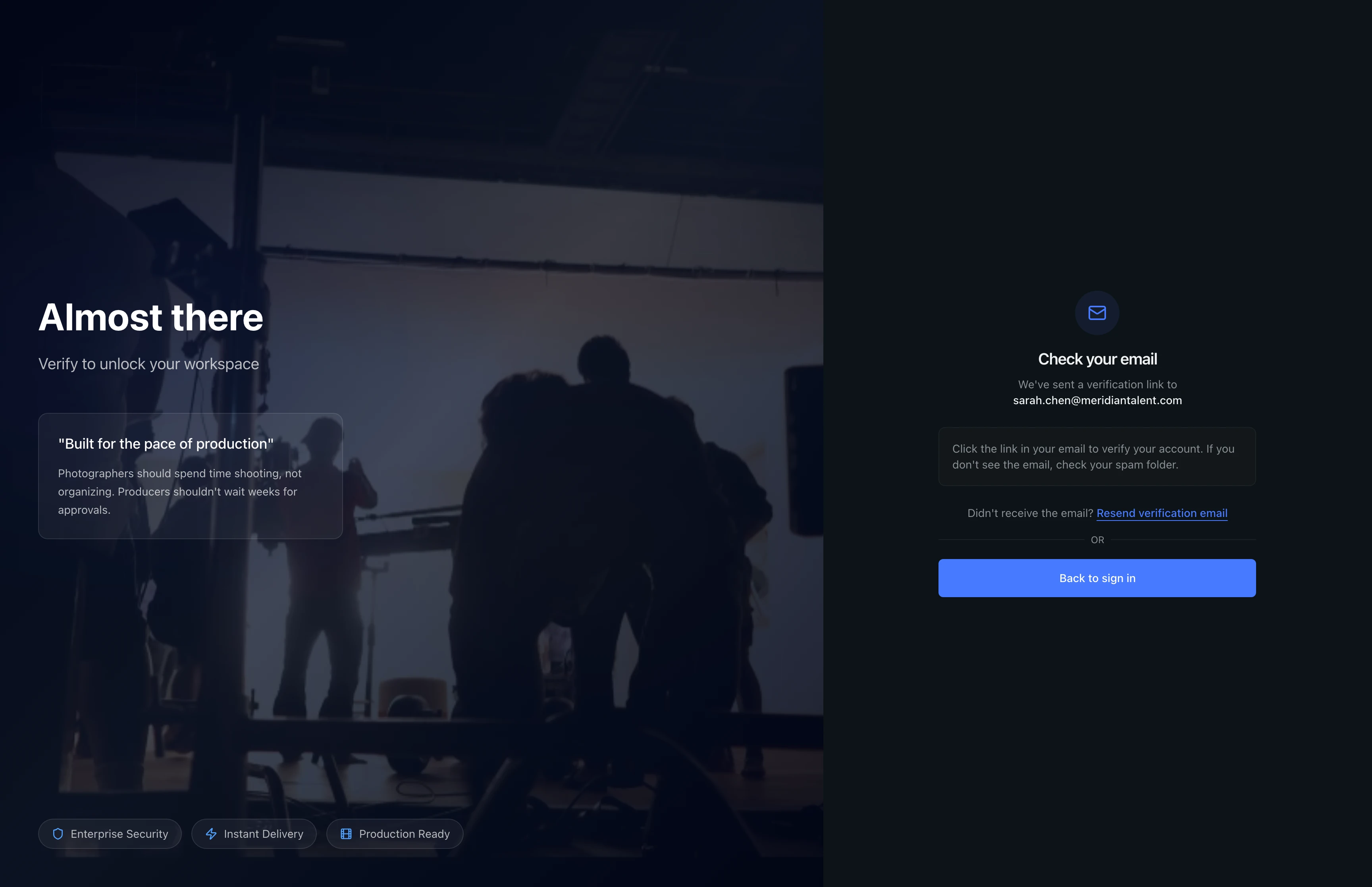
After registration, you will see a confirmation page asking you to check your email inbox. Open the verification email from ReelStorage and click the link inside to activate your account.
The verification link expires after 24 hours. If you miss the window, return to this page and click Resend verification email to generate a fresh link.
If you do not see the email within a few minutes, check your spam or promotions folder. You can also click Resend verification email on this page to send a new one.
Tips and Best Practices
- Use a password manager: The 16-character minimum is designed to protect your account and your team's assets. A password manager makes it easy to generate and store a strong password without memorizing it.
- Check spam folders: Verification emails sometimes land in spam or promotions folders. Whitelist [email protected] to avoid this in the future.
- Bookmark the sign-in page: After verifying, bookmark the sign-in URL so you can return to ReelStorage quickly.
Troubleshooting
I did not receive the verification email
Check your spam or junk folder first. If it is not there, return to the verification page and click Resend verification email to send a new one. Make sure the email address you entered during sign-up is correct. If you mistyped it, you will need to create a new account with the correct address.
My password does not meet the requirements
Make sure your password is at least 16 characters long and includes at least 3 of these 4 types: uppercase letters, lowercase letters, numbers, and special characters. The checklist below the password field shows exactly which criteria still need to be met. Avoid using sequential patterns (like "1234") or repeated characters (like "aaaa"), as these will also fail validation.
I already have an account
Click the Sign In tab at the top of the form to switch to the sign-in view. You can also go to the Signing In guide for help with password resets and two-factor authentication.

What's Next
- Setting Up Your Organization: After verifying your email, set up your first organization and invite team members.
- Signing In: Learn about signing in, password resets, and two-factor authentication.
Related Guides
Signing In to Your Account
Sign in to your ReelStorage account, reset a forgotten password, and learn about two-factor authentication.
Setting Up Your Organization
Complete the onboarding wizard to create your studio, choose a plan, and invite team members to start collaborating.