

Signing In to Your Account
Prerequisites
Sign in to ReelStorage using your email and password. This guide covers the sign-in form, alternative sign-in methods, resetting a forgotten password, and completing two-factor authentication.
What You'll Learn
- How to sign in with your email and password
- Alternative sign-in options (SSO and Passkey)
- How to reset your password if you forget it
- How to complete two-factor authentication and use backup codes
Step 1: Go to the Sign-In Page
Open your browser and navigate to the ReelStorage sign-in page. You will see a split-screen layout with a production-themed panel on the left and the sign-in form on the right. The form defaults to the Sign In tab with fields for Email and Password. Below the form, you will also find options to sign in with SSO or a Passkey.
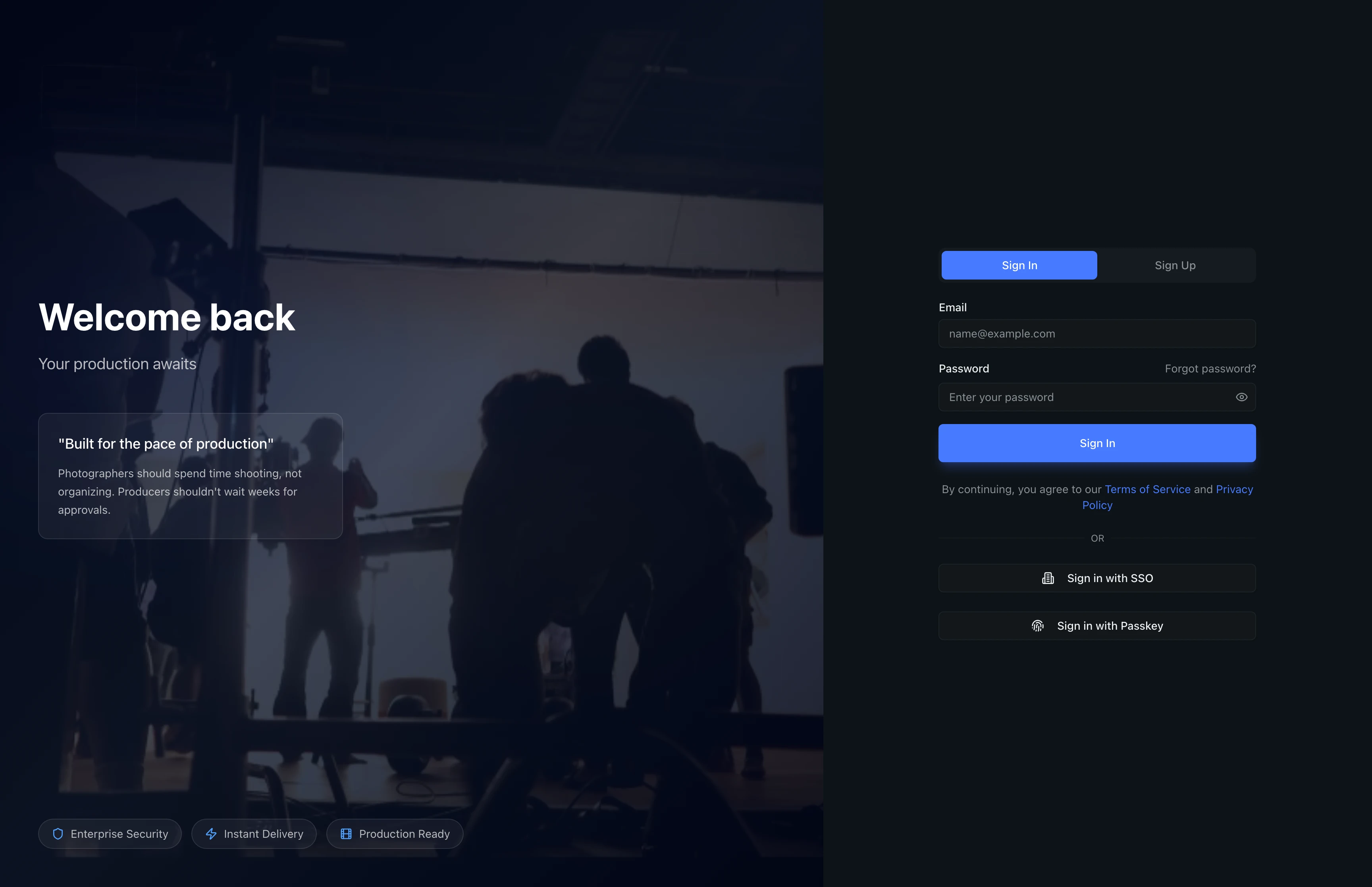
If your organization uses single sign-on (SSO), click Sign in with SSO at the bottom of the form instead of entering your email and password. Passkey sign-in works with biometric authentication like Touch ID or Face ID if you have registered a passkey in your account settings.
Step 2: Enter Your Email and Password
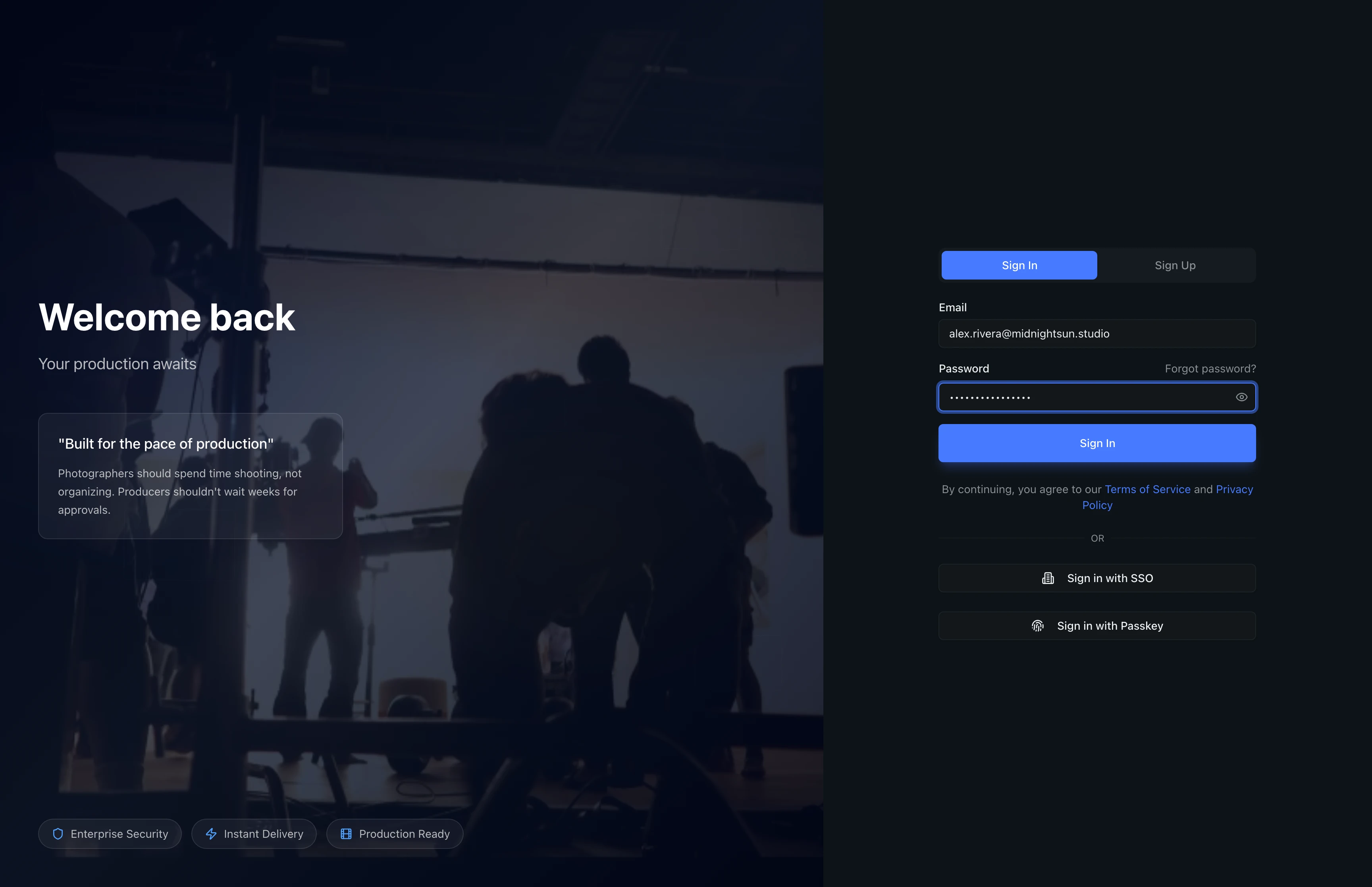
Type your email address in the Email field and your password in the Password field. When both fields are filled, click the Sign In button to access your account.
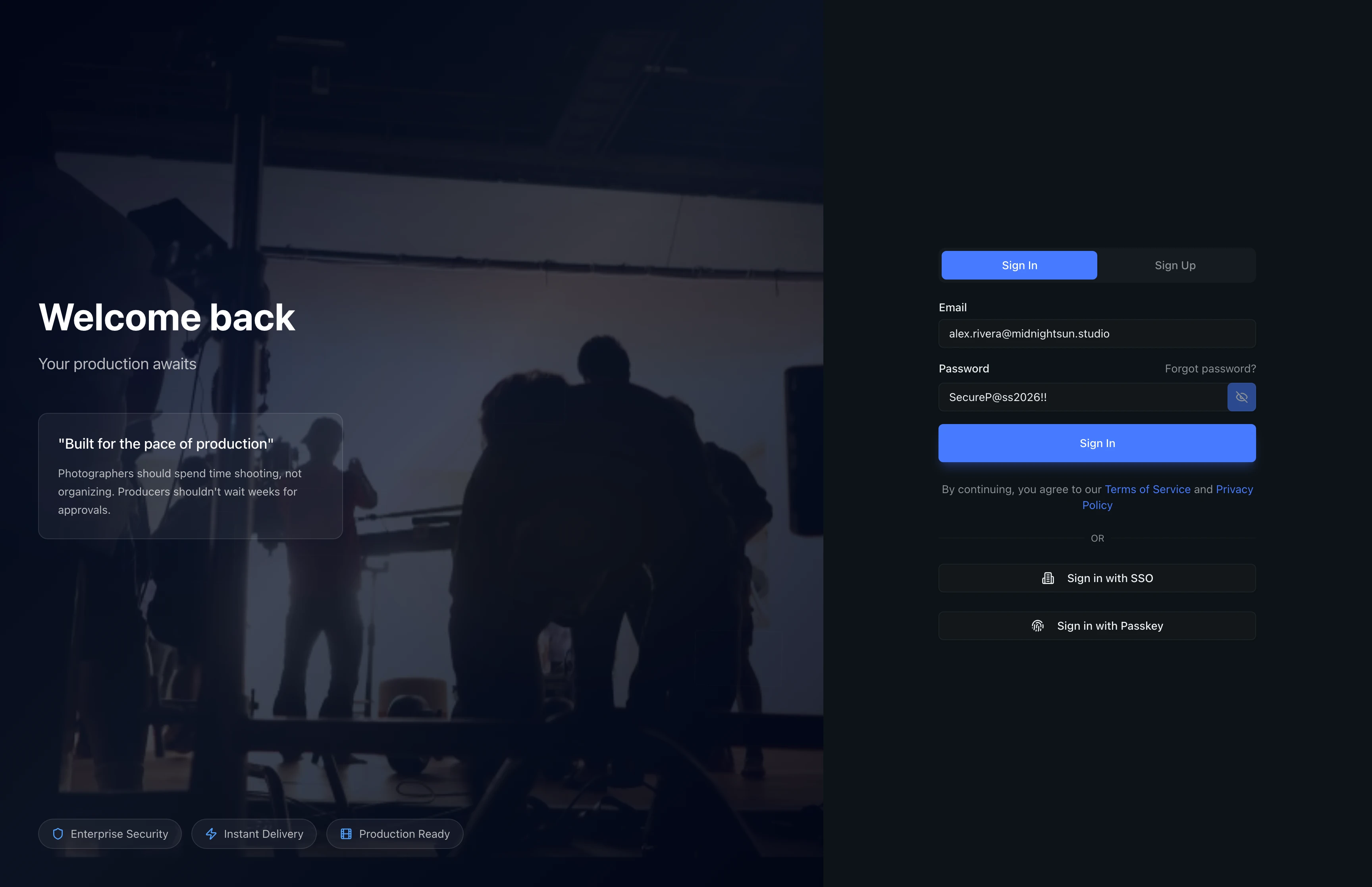
Click the eye icon to the right of the password field to toggle visibility and confirm you typed it correctly. The password switches between masked dots and plain text each time you click the icon.
Step 3: Reset a Forgotten Password
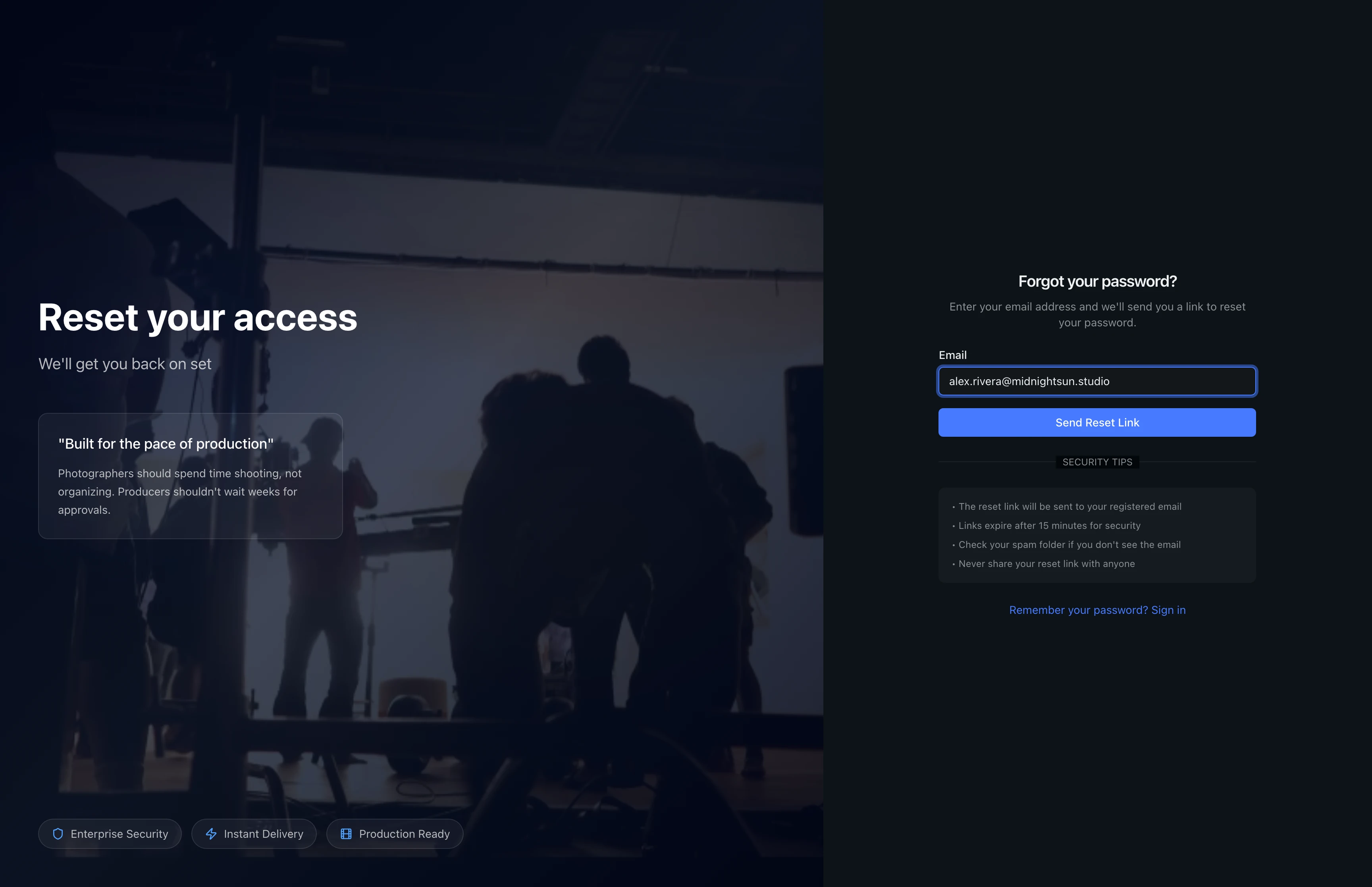
If you forget your password, click the Forgot password? link next to the Password label. This opens the password reset page. Enter the email address associated with your account and click Send Reset Link. The security tips section below the button explains what to expect.
Step 4: Check Your Email for the Reset Link
After submitting the form, a confirmation message appears showing the email address where the reset link was sent. The link expires after 15 minutes for security. If you do not see the email, check your spam folder or click Send another email to resend it. Use the Remember your password? Sign in link to return to the sign-in page.
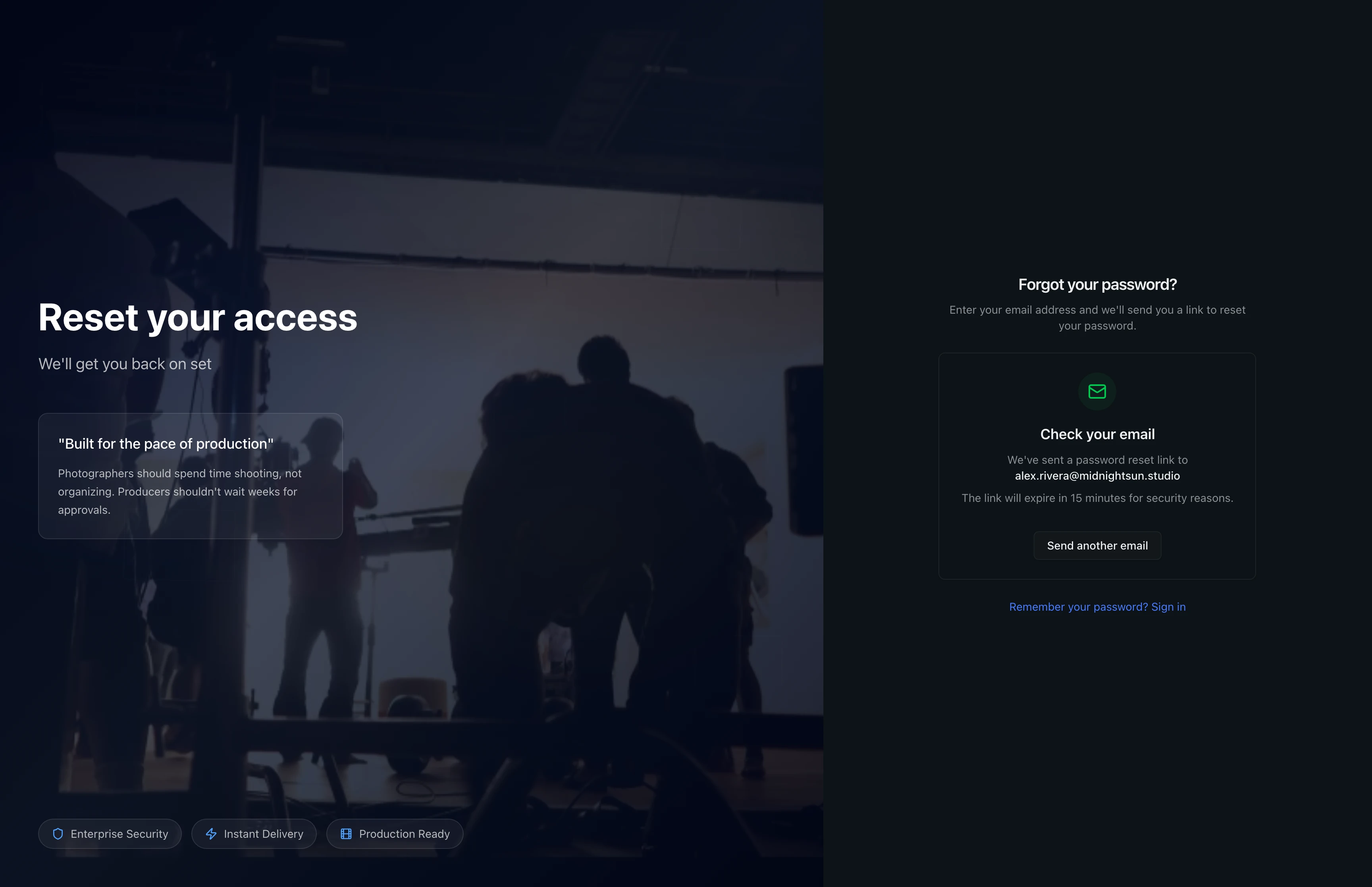
Password reset links expire after 15 minutes. If your link has expired, return to the forgot password page and request a new one.
Step 5: Complete Two-Factor Authentication
If your account has two-factor authentication (2FA) enabled, you will see a verification page after entering your credentials. Open your authenticator app (such as Google Authenticator or Authy) and enter the 6-digit code in the verification field. Check Trust this device for 30 days to skip this step on future sign-ins from the same browser.
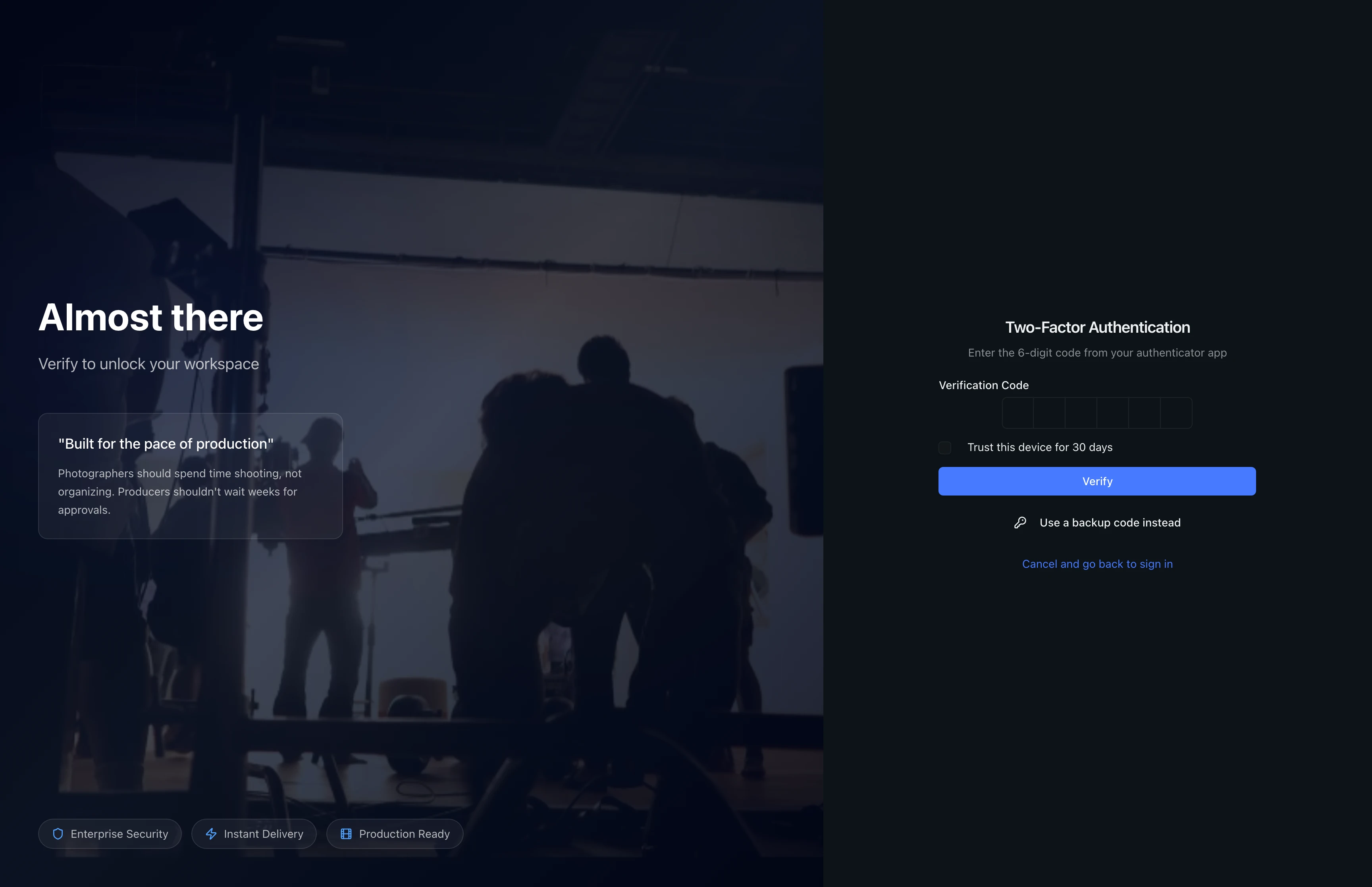
Step 6: Use a Backup Code (If Needed)
If you have lost access to your authenticator app, click Use a backup code instead below the Verify button. The form switches to a text input where you enter one of the backup codes you saved when you first enabled 2FA. Each backup code can only be used once. After entering the code, click Verify to complete sign-in.
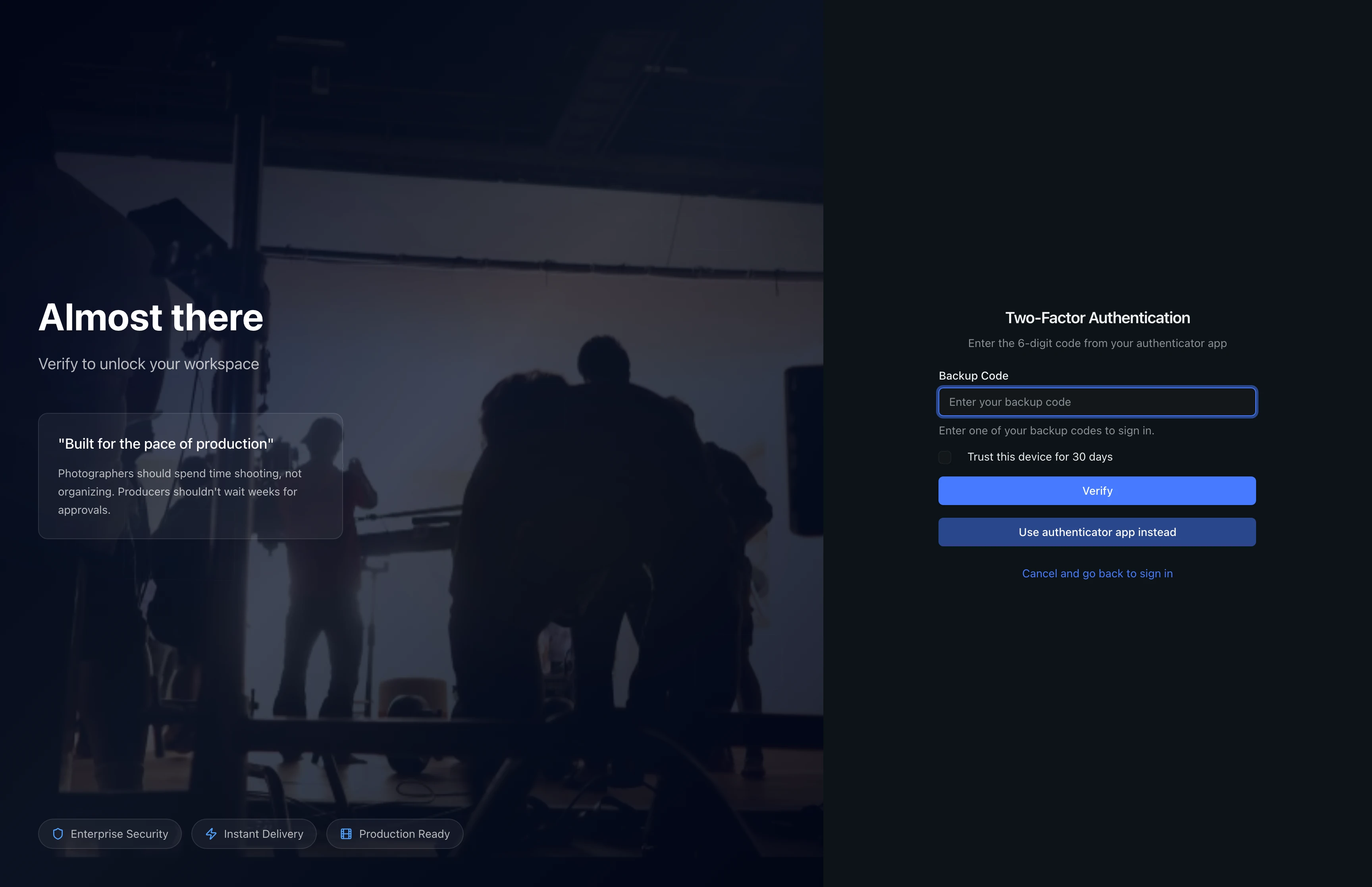
To return to the authenticator code entry, click Use authenticator app instead. You can also click Cancel and go back to sign in to return to the sign-in page.
Tips and Best Practices
- Use a password manager: Store your ReelStorage credentials in a password manager like 1Password or Bitwarden so you do not need to remember them.
- Enable two-factor authentication: Add 2FA through your account settings for an extra layer of security. This is recommended for all team members with admin or owner roles.
- Save your backup codes: When you enable 2FA, store the backup codes in a secure location separate from your authenticator app. These are your recovery option if you lose your device.
- Try Passkey sign-in: If your device supports biometric authentication, register a passkey in account settings for faster, passwordless sign-in.
Troubleshooting
I entered the correct password but cannot sign in
Double-check that Caps Lock is off and that you are using the right email address. If you recently changed your password, make sure you are using the new one. Your account may also be locked after multiple failed attempts -- wait a few minutes and try again.
I did not receive the password reset email
Check your spam or junk folder. If it is still not there after a few minutes, verify you entered the email address that is registered on your account. Contact your organization admin if you are unsure which email you used to sign up.
I lost access to my authenticator app
Click Use a backup code instead on the two-factor authentication page and enter one of your saved backup codes. If you have also lost your backup codes, contact your organization admin to have 2FA reset on your account.
What's Next
- Setting Up Your Organization: After signing in, set up your organization and invite team members.
- Creating Your Account: If you do not have an account yet, start here.
Related Guides
Creating Your Account
Create your ReelStorage account with a secure password and verify your email to get started with the platform.
Setting Up Your Organization
Complete the onboarding wizard to create your studio, choose a plan, and invite team members to start collaborating.